> For the complete documentation index, see [llms.txt](https://www.opentimeclock.com/docs/llms.txt). Markdown versions of documentation pages are available by appending `.md` to page URLs; this page is available as [Markdown](https://www.opentimeclock.com/docs/blog1/november-2025/how-to-create-a-whos-working-live-map-for-distributed-teams.md).
# How to create a “who’s working” live map for distributed teams
Discover how to create a reliable “Who’s Working” live map for distributed teams using tools like time sync engines, load balancing, device verification, privacy mode, live alerts, and insight reporti
Nowadays, companies face the problem that their team is working in different cities and different zones and HR does not know in real time who is currently active, who is on break and who is working in task mode. This difference slows down the team’s synchronization and makes the project flow difficult. That is why today the “who’s working live map” has become a strong trend in which the live status of the team is displayed on a clear map and the active mood of each user is clear for HR.
This live map integrates [time data](http://opentimeclock.com), location data and shift mode into a secure panel so that the team lead gets a smart view and can make a quick call or assign quickly. This model also builds team trust as every staff member feels confident that their time is logged securely and their work is reflected accurately.
### Select the data source
The first step in creating a live map is to select the data source because the map is clear only when HR gets the perfect time feed and the perfect location feed. The data source is usually obtained from the time app where the staff starts their shift and the system saves their timestamp. This data is sent to the server in a secure format and the map panel reads this feed. HR first needs to decide whether their org uses mobile punch or geo punch as both are different map sources.
Mobile punch data is static and sends the device ID with every tap. Geo punch is robust to maps as it gets the user’s zone code. To make the live map seamless, HR needs to have a source main and keep the backup source optional so that the data flow never stops and the map runs error-free.
### Setting up the location capture model
The location capture model is the foundation of the live map because the map requires the user’s active location to show which zone the user is currently working in. This model typically uses GPS and Wi-Fi zones and the system sends a fresh ping every few minutes which updates the map. HR has to decide whether they want high-accuracy GPS or medium-accuracy Wi-Fi. GPS is best for outdoor teams and Wi-Fi is convenient for indoor teams.
The capture model also protects privacy because it shows zone-level data and not individual addresses. To implement this model, the system sets a threshold in which the user’s location is logged with only the zone code. This plan is secure and gives peace of mind to staff because their actual address is hidden and only the work area is shown.
### Creating a Live Map Engine
The Live Map Engine is a smart grid that merges the time feed and location feed and displays it on a clean board where each user is visible as an icon. The core of the engine is a refresh cycle that updates the map every few minutes. This update is smooth and does not create any heavy load. The engine also displays the user status including modes like Active, Break, Offline and Idle to give HR a smart view.
The UI for the Live Engine should be clean so that the map is not cluttered and each user can be easily found. HR can also customize the engine by setting shift color codes and enabling task load view. This engine creates the map in real time and gives team leaders a powerful tool that speeds up daily planning.
### Securing staff identity
It is very important to protect the identity of the staff when creating a live map because the map is an open panel and the company does not want to expose sensitive data of the staff. In the Identity Safe model, the system displays the user name in a short code and hides the device ID. This short code is sufficient for HR and also makes the staff feel safe. Only the work area is shown on the map and not the actual place of home.
In the Identity Safe model, the photo is also optional and HR can enable or disable it. This privacy step builds trust and the team feels that their data is safe and their movements are not misused. In this model, the system is active only during the work shift and hides the map user after the shift is over. This plan is fair and strengthens the remote culture.
### Applying shift mode logic
Shift mode logic makes the live map realistic because the work map needs to know whether the user is at the start of a shift, mid-shift, on a break, or closing a shift. This logic checks the timestamp and the user’s tap mode, so the map shows the real state of each user. This model works quickly because with each tap, a state update occurs, and the engine pushes that update to the map.
Shift logic makes it clear to HR how many staff are active, how many are on breaks, and how many are offline. This logic makes team control easier and task assignment faster. Shift mode also gives HR a clear graph of punctuality, which is ideal for team evaluation.
### Creating Team Cluster Zones
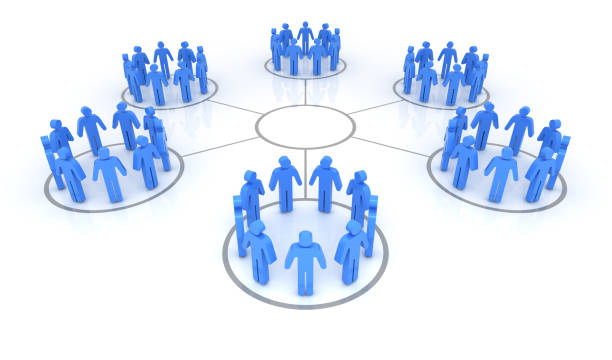
The Team Cluster Zone Model cleans up the live map because distributed teams are typically spread across multiple cities, multiple destinations, and multiple duty spots, and if each location is shown directly on the map, the map becomes cluttered. The Cluster Zone Model converts users into a common group so only the zone cluster is visible on the map and users are counted in that cluster. This simplifies the planning map and gives team leadership a high-level view. The cluster also helps HR understand workload. The Zone Cluster is perfect for remote teams where staff are dispersed.
#### Use a time sync engine
The [time sync engine](http://opentimeclock.com) is the core strength of Live Map because the system matches each user’s clock to the server’s clock. In distributed teams, device times often change, resulting in inaccurate timestamps on the map. The time sync model solves this problem with smart logic and pushes each record forward in the same pattern. When a user logs in, the engine verifies their device clock and then aligns it with the server’s time to avoid any delays or drift. This approach ensures clean shift start and shift end times and gives HR strong audit power.
Remote teams using mixed devices eliminate the risk of buddy punching as many people try to put in fake timestamps. The time sync engine thwarts this trick as many fake timestamps fail to match the servers. This model keeps the map data fresh and gives each point a sense of real time. The time sync engine is at the heart of Live Map’s accuracy, and without it, the map’s reliability is low.
#### Setting up load balancing
The load balancing engine makes the live map stable because many remote teams have a heavy data push every second. When users are active, location flow and status updates keep coming to the map, and if the server pressure becomes high, the map shows latency. The load balancing model spreads this pressure evenly so that the system does not slow down. This engine breaks the data into small packets and then pushes it to the panel smoothly. If hundreds of users are active at the same time, there is a risk of the map freezing.
The load balancing model reduces this risk to zero and provides a fast response to each update. This method is robust for distributed teams because the data traffic is uneven. The load balancing logic monitors the health of the server and when the load is high, the traffic is moved to an alternative path. This improves uptime and makes the map feel reliable. The live map is only reliable when every user sees the changes in real time and there is no delay. This system is the best choice for large teams.
#### Installing a device authentication system
A device authentication system is essential for a remote culture because access to a fake device puts team data at risk. This model checks the ID of each device and then verifies the health of the device so that no unsecured tool can log in to the map. When a worker logs in, the system reads the unique code of that device and then compares it to see if this code is stored in the company’s records. This step prevents unauthorized access and eliminates the risk of a stolen device. In distributed teams, people use multiple devices and this can lead to data being mixed up.
The device authentication model associates each entry with the exact name of the device so that HR can have a clean audit trail. This approach also reduces the risk of buddy punching, as logins from fake devices are never possible. The system only allows trusted devices to access the map, making every update secure. This model increases the trust value of the live map and gives management a complete picture of each shift.
#### Enable privacy mode
Privacy mode is a comfortable feature for remote workers as the system hides the user’s exact location and only shows the zone level area. Many people in remote cultures feel privacy issues and hence find the tracking tool to be strict. Privacy mode creates a safe space for them so that the team relationship can be smooth. When this mode is activated, only the perimeter of the area is shown on the map and the exact pin is hidden.
This method also matches the data principle as many regions follow strict data policy. This mode improves the worker’s trust level and he feels comfortable using the tool. The team lead also gets a clear zone idea to plan the workload. This model is robust for hybrid cultures as each worker logs in from different locations and everyone’s data needs to be kept safe. Privacy mode makes the map user-friendly and the tool adoption rate high.
#### Use live alerts
The Live Alerts model makes the Live Map interactive and provides HR with instant information. Activity checks in remote teams are real-time and delays weaken team control. The Live Alert system immediately displays events such as shift start miss, break long, idle long and late exit. When a worker is idle for more than the allotted time, the system sends a blinking alert so that the team lead can take action quickly. This model keeps the workload flow clear and reduces unfair time. In a distributed setup, the supervisor cannot have a direct view of the destination, so alerts become a strong guide.
The system also catches attendance errors as every step is automatically tracked. The Live Alerts model reduces risks such as time theft and strengthens team discipline. Each alert appears on the panel and also sends a push notification to ensure fast response times. This feature is essential for a remote culture.
#### Creating Insight Reports
Insights report creates an analytical layer with live maps that provide HR with deep insights like trend patterns, workload line breaks, utilization, peak hours, and idle rate. In distributed teams, activity is fragmented, and the Insights panel shows this fragmentation in a clear format. This report compares the patterns across days and shifts to help the team plan smarter.
Managers can see from this report which zones have high workloads and which zones are actively understaffed. This data strengthens workforce planning and makes it easier to predict future workloads. The Insights model also captures performance gaps and highlights areas for system improvement. In a remote culture, only numbers tell the real picture, so Insights report is a key strength. This panel consolidates data and gives the team a long-term vision.
### Conclusions
Live maps are a next-level tool for distributed teams because they provide real-time visibility to HR and accelerate team flow. The map integrates time data, location data, and shift status into a clean dashboard, balancing the remote culture. Privacy is protected and team trust is built. This model has become an essential feature in today’s remote era.
### FAQs:
#### 1. What is a “Who’s Working” live map?
A “Who’s Working” live map shows real-time worker status, location zones, and activity updates for distributed teams. It helps managers see who is active, idle, or offline at any moment.
#### 2. Why is time sync important for a live map?
Time sync ensures every device matches the server clock. This prevents timestamp errors, improves accuracy, and reduces risks like fake check-ins or buddy punching.
#### 3. How does device verification improve security?
Device verification checks each device ID and health before allowing access. This stops unauthorized logins and ensures that only approved devices can update the live map.
#### 4. What does the privacy mode do?
Privacy mode hides the worker’s exact location and shows only a zone-level view. This protects user privacy and keeps the system compliant with data-protection rules.
#### 5. Why are insight reports useful?
Insight reports show patterns like peak activity, idle time, work zones, and shift behavior. Managers use these insights to plan workloads, balance teams, and improve remote operations.
---
# Agent Instructions
This documentation is published with GitBook. GitBook is the documentation platform designed so that both humans and AI agents can read, navigate, and reason over technical content effectively. Learn more at gitbook.com.
## Querying This Documentation
If you need additional information that is not directly available in this page, you can query the documentation by asking a question.
Perform an HTTP GET request on the following URL with the `ask` and `goal` query parameters:
```
GET https://www.opentimeclock.com/docs/blog1/november-2025/how-to-create-a-whos-working-live-map-for-distributed-teams.md?ask=&goal=
```
`ask` is the immediate question: it should be specific, self-contained, and written in natural language.
`goal` is what the user is ultimately trying to achieve, the reason they need the answer. Sharing it helps GitBook give you a better, more relevant answer. A goal is most helpful when it describes the outcome the user wants rather than restating the question. For example, with `ask=how do I create an API token`, a goal like `automate deployments from our CI pipeline` lets GitBook tailor the answer to that use case.
The response will contain a direct answer to the question and relevant excerpts and sources from the documentation.
Use this mechanism when the answer is not explicitly present in the current page, you need clarification or additional context, or you want to retrieve related documentation sections.