> For the complete documentation index, see [llms.txt](https://www.opentimeclock.com/docs/llms.txt). Markdown versions of documentation pages are available by appending `.md` to page URLs; this page is available as [Markdown](https://www.opentimeclock.com/docs/blog2/december-2025/how-to-make-a-schedule-in-excel-a-step-by-step-guide.md).
# How to Make a Schedule in Excel: A Step-by-Step Guide
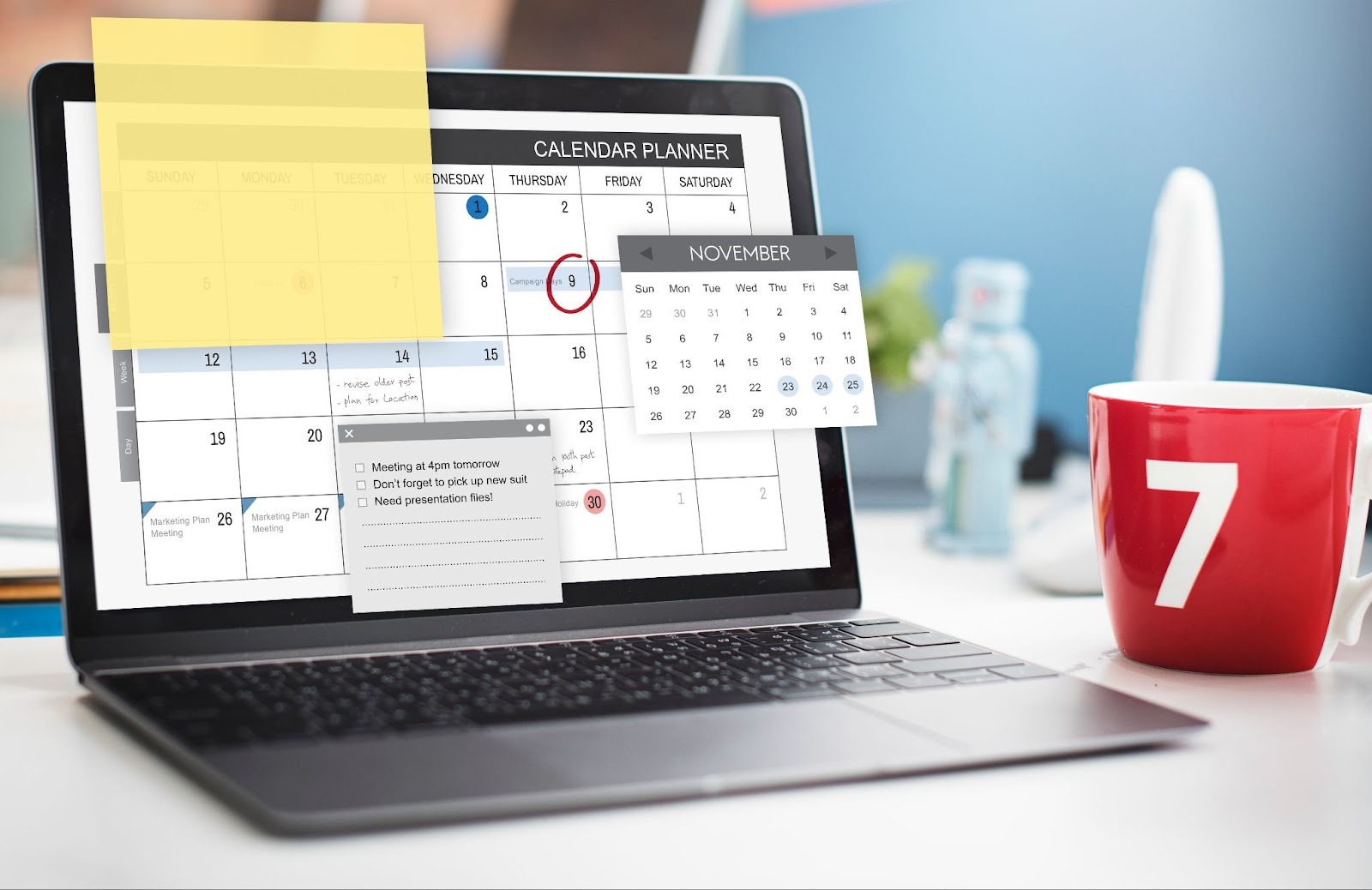
This is a comprehensive step-by-step guide to creating spreadsheets in Excel, including templates for weekly, daily, and employee shift schedules. It is simple to format and easy to automate.
Developing plans within certain time frames is part of almost every workflow. Employees need to have shift plans. Students need to have study timetables. Managers need to have task calendars mapped out. Project teams need to have timelines. When looking for something that offers flexibility, speed of creation, and ease of updating, one[ often finds that Excel](https://edu.gcfglobal.org/en/excel/) is the ideal tool.
This is a thorough guide that includes everything, including planning your layout, automating processes, formatting for clarity, and integrating other tools and schedules. The focus of this guide was to teach you both the how and the why, so you can fashion something simple, effective, and dependable.
I have also included additional research to offer insights, professional techniques, and help you avoid common design practice mistakes.
### Why Excel Works Well for Scheduling
People gravitate towards Excel to develop their schedules because of the workflow flexibility you simply do not find with other generic templates and mobile applications. Instead of having your workflow decided for you, Excel lets you determine how you want it.
Some key strengths of using[ Excel to schedule your time](https://www.opentimeclock.com/docs/shift-schedule) are as follows:
1\. Customization
You have the freedom to design your schedule in any way you want, whether that be hourly, on a weekly basis, monthly, task-oriented, by employee, or by project.
2\. Automation
With some basic formulas, Excel lets you track total hours worked, solve issues, and automatically update summaries.
3\. Integration
Excel uploads are accepted by a wide range of applications. For instance, sites like OpenTimeClock let you import Excel-formatted schedules to track attendance or manage shifts more professionally.
4\. Scalability
Over time, it is possible to evolve from a basic table to a sophisticated, color-coded, formula-enabled scheduler without changing software.
5\. Clarity
You can create easy-to-read, visually appealing, and organized schedule templates.
These reasons make Excel a great choice for anyone who requires a schedule to collaborate and communicate with others for a long time.
### Getting Started: Preparing Your Excel Workbook and Schedule Structure
#### Step 1: Start With a Blank Workbook
To begin, open Excel and generate a new workbook. Next, assign a clear name to the file, such as:
* Work Shift Schedule: February
* Study Plan: Semester 1
* Project Timeline: Q1 2026
This keeps your file organization transparent. Don’t forget to save your workbook and save your progress as you go.
#### Step 2: Design the Structure before Entering Data
This is the step many beginners skip, and it is a primary[ factor in many schedules](https://www.opentimeclock.com/features.html) ending up messy.
Prior to beginning, consider the following:
1\. What type of schedule do you need?
* Daily planner
* Weekly work shift schedule
* Monthly calendar
* Project timeline
* Resource allocation chart
* School study schedule
Each different type of schedule requires a different setup.
2\. What time granularity makes the most sense?
* 15-minute slots for healthcare or call centers
* 30-minute slots for meeting planners
* Hourly slots for shift-based teams
* Multi-hour blocks for study or project work
3\. Who is the schedule target for?
* You
* Your team
* Employees
* Students
* Clients
A large department with multiple managers
4\. Will you be updating it daily or weekly?
To plan updates most efficiently, the more underlying structure and formulas to include, the better.
Investing time in this step will significantly improve the[ overall appearance of the schedule](https://www.opentimeclock.com/docs/blog1/december-2025/what-small-manufacturing-plants-need-from-a-time-clock-system).
#### Step 3: Use meaningful titles for your columns
With no header titles, it can be difficult to make sense of your spreadsheet data.
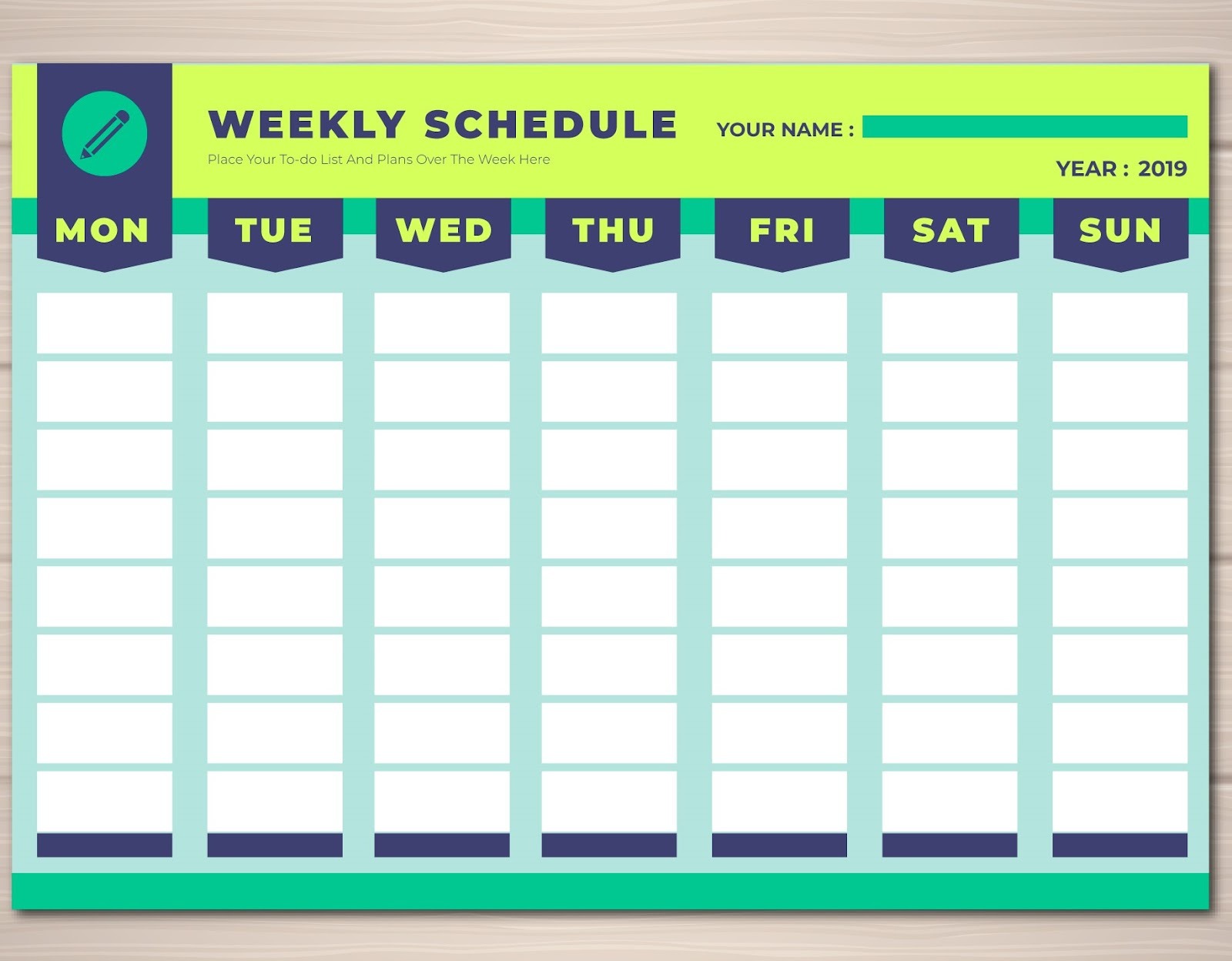
Here is a common set of headers for a weekly schedule:
* Time
* Monday
* Tuesday
* Wednesday
* Thursday
* Friday
* Saturday
* Sunday
Here is another set of headers for an employee schedule:
* Employee Name
* Role
* Shift Start
* Shift End
* Total Hours
* Comments
Here is another set of headers for a project task schedule:
* Task
* Owner
* Start Date
* End Date
* Status
* Priority
To make headers stand out, use larger fonts, bold, and a light background color.
Doing this will help make the header stand out and make the schedule more visually appealing.
#### Step 4: Populate cells for time intervals or task rows
With time-based planners, the first column is the time.
Start with your earliest time, an example would be 8:00 AM, and work your way down time blocks to create intervals. Excel will fill the time pattern for you.
With task-oriented planners, you can also use the intervals and categories:
* “Team Meeting”
* “Development Work”
* “Client Calls”
* “Review Time”
With a school planner, you can also use the time intervals:
* Period 1
* Period 2
* Lunch
* Period 3
* Period 4
Make sure the pattern stays consistent so the schedule doesn’t feel random.
#### Step 5: Enter Activities, Tasks, or Shifts
It’s time to start inputting the specific information that will start to shape your schedule.
Here are some tips that will keep your entries looking uniform:
* Use abbreviated titles
(Such as “Inventory check, “Admin work,” “Training,” etc.)
* Do not go overboard with the color selection.
* Refrain from lengthy explanations.
* Keep naming uniform
(i.e., if “John” is the name you are using, you shouldn’t be using “Johnny” any other time)
* In the case of tasks that span multiple hours, in order to produce a neat, continuous rectangle, merge the time slots above or below the corresponding tasks.
#### Step 6: Structure the Schedule for Optimum Readability
No, you are not “decorating” the schedule; you are making the schedule more functional.
Here are some basic guidelines you should follow to structure your schedule:
1\. Use of Borders
By applying light border lines to your schedule, you will create a grid that is much easier to read and contribute to a more organized overall appearance.
2\. Stick with a Color Theme
Assign specific colors to events, and don’t change the colors from event to event:
* Meetings: light blue
* Breaks: gray
* High priority tasks: red
* Completed tasks: green
* Pending tasks: yellow
3\. Use Excel’s Conditional Formatting
Let Excel highlight:
* Long shifts
* Time blocks that overlaps
* Tasks that is due late
* Weekend days
* Upcoming tasks
4\. Use of Merged Cells
This is especially helpful for tasks that span multiple hours.
5\. Use of Freeze Panes
Freezing the top row of your schedule keeps your labels visible as you scroll.
Taking the time to structure your schedule will “polish” your work and provide you with a more functional schedule overall.
#### Step 7: incorporate useful functions
Spreadsheet functions and other applications work most efficiently in the program designed for calculations. The following are equations one often encounters when drafting work calendars.
1\. Determine hours of a duty
* \=(EndingTime-StartingTime)\*24
Assure to format the outcome to a number or \”General\”.
2\. Decide the total hours of an entire week
* \=SUM(C2:I2)
Modify the range to adjust to your work plan.
3\. Use data validation as a means to set drop-down lists
The following are options for use with drop-down lists.
* Employee names
* Task category
* Prioritization
* Shift status
The above enhances the aesthetic layout by reducing clutter and eliminating manual entry errors.
#### Step 8: Saving, exporting, and distribution
When complete:
* Save the schedule as one would a work document.
* Save a copy to retain the formatting attributes of a PDF.
* Distribute via email, cloud, or digital team collaboration software.
* When paired with time management software, such as OpenTimeClock, you need to upload the document to make the shifts or tasks work.
When printing the document, use the PDF. Opt for the Excel document when you want to make changes.
### Advanced Techniques for Professional-Grade Schedules
For those looking to advance their scheduling skills, consider these suggestions.
#### Use Excel Tables instead of engaging with Simply Cells
Tables permit:
* Formatting that is automated
* Fast sorting as well as filtering
* Ranges that is dynamic
* Easier calculations
* Select Insert> Table to convert your schedule.
#### Incorporate a Dashboard Summary
A basic dashboard is capable of displaying:
* Total hours worked by each employee
* Most frequently scheduled tasks
* Time slots with insufficient staff
* Indicators of overtime
* Daily distribution of shifts
This transforms a standard schedule into a sophisticated preparation instrument.
#### Implement Timelines or Charting in Gantt Style
* Excel can create Gantt charts for project timelines.
* Compile tasks
* Insert start as well as end dates
* Employ stacked bar charts to represent timelines
This is particularly beneficial for planning and tracking projects.
### Using Excel Schedules with Other Tools
Excel is frequently the basis. More automation is possible, including features such as employee time tracking, shift swapping, and attendance monitoring, with systems like OpenTimeClock that let you:
* Uploads Excel schedules
* Allocates schedules to employees
* Monitors attendance in real time
* Issues reminders and notifications
* Optimizes shift management
This creates versatility: you can create the schedule in Excel, and then use the software to manage the schedule.
### Potential Problems and Preventable Issues
Some problems that may arise that you can try to prevent are:
#### Mistake 1: Designing an overly complex layout.
An overly complex layout can include multiple colors, shapes, and/or columns, making it difficult to read for any audience.
#### Mistake 2: Forgetting to protect the sheet
Some people may delete and or edit your document without your permission, manually or automatically.
#### Mistake 3: Forgetting to create backups
Schedules change frequently. It is important to keep some older versions up to date to stay on track with assignments.
#### Mistake 4: Using merged cells everywhere
Merging cells in some instances is fine; however, be careful when overusing merged cells, as they may create difficulty when it is time to sort and/or filter.
#### Mistake 5: Not structuring time blocks properly
It can create time intervals that are visually confusing and inconsistent.
If you can avoid the things listed above, it can help you maintain a very professional and trustworthy schedule.
### Conclusions
When you create a schedule in Excel, you gain complete control over its layout, automation, and overall design. This level of flexibility allows you to tailor the schedule precisely to your requirements, whether you are organizing a personal calendar, assigning employee work shifts, tracking deadlines, or managing a complex project timeline. Excel’s customizable structure ensures that your schedule aligns perfectly with your workflow and objectives.
Excel also allows you to maintain consistency by adding clear titles, headers, and well-defined data fields. You can automate repetitive tasks using formulas, conditional formatting, and built-in functions, which reduces manual effort and minimizes errors. Strategic use of formatting such as color coding, borders, and font styles improves readability and makes important information easier to identify at a glance.
Once your schedule is finalized, Excel makes it easy to save, export, and share the file in multiple formats, including Excel, PDF, or CSV. This ensures smooth collaboration with team members and stakeholders across different platforms. Over time, as you become more familiar with Excel’s features, it evolves into a powerful and adaptable scheduling tool capable of supporting nearly any workflow.
### FAQs:
#### 1. How can you best start a weekly schedule?
The easiest way is to include time slots in the first column and the days of the week across the top. Then you can fill in the tasks or assign names as needed.
#### 2. Can Excel calculate total working hours automatically?
Yes. You can use the formula =(EndTime-StartTime)\*24.
#### 3. Does Excel have any schedule templates?
Yes, if you search “Schedule” or “Calendar" in the template gallery, you'll find some.
#### 4. Should I use conditional formatting when making schedules?
Yes, it can be very useful when you want to automatically highlight long shifts, overdue tasks, or weekends.
#### 5. Is it possible to import Excel timetables into other systems?
Many systems, such as OpenTimeClock, support Excel imports for shift or attendance management.
#### 6. What measures can be taken to avoid inadvertent changes?
By going to Review → Protect Sheet, you will freeze the editable cells containing formulas.
#### 7. What's the optimal method for disseminating rosters to a group?
Ans: Keep an Excel file along with a PDF version of the document. Then, you may distribute it either via cloud storage or email.
---
# Agent Instructions
This documentation is published with GitBook. GitBook is the documentation platform designed so that both humans and AI agents can read, navigate, and reason over technical content effectively. Learn more at gitbook.com.
## Querying This Documentation
If you need additional information that is not directly available in this page, you can query the documentation dynamically by asking a question.
Perform an HTTP GET request on the current page URL with the `ask` query parameter, and the optional `goal` query parameter:
```
GET https://www.opentimeclock.com/docs/blog2/december-2025/how-to-make-a-schedule-in-excel-a-step-by-step-guide.md?ask=&goal=
```
`ask` is the immediate question: it should be specific, self-contained, and written in natural language.
`goal` is optional and describes the broader end goal you are ultimately trying to accomplish on behalf of the user. GitBook uses it to tailor the answer towards what is most useful for that goal.
The response will contain a direct answer to the question and relevant excerpts and sources from the documentation.
Use this mechanism when the answer is not explicitly present in the current page, you need clarification or additional context, or you want to retrieve related documentation sections.