Wall Mounted Tablet Time Clock Kiosks for Small Businesses: A Complete Guide
Learn everything about tablet time clock kiosks for small businesses. Set up fast, stop time fraud, and track staff for free with OpenTimeClock today.
Running a small business means making smart decisions with limited resources. Every tool you invest in needs to earn its place by solving a real problem, saving time, reducing costs, or improving how your team works. When it comes to tracking employee attendance, tablet time clock kiosks are one of the most practical and cost-effective tools a small business can implement.
A tablet time clock kiosk is exactly what it sounds like. A tablet device, usually an iPad or Android tablet, mounted near the entrance of your workplace and running attendance management software. Employees use it to clock in and out at the start and end of every shift. The device records their attendance automatically, syncs the data to the cloud, and gives managers real-time visibility into who is working and when.
This complete guide covers everything a small business owner needs to know about tablet time clock kiosks, from choosing the right hardware to setting up the software to managing the transition with your team.
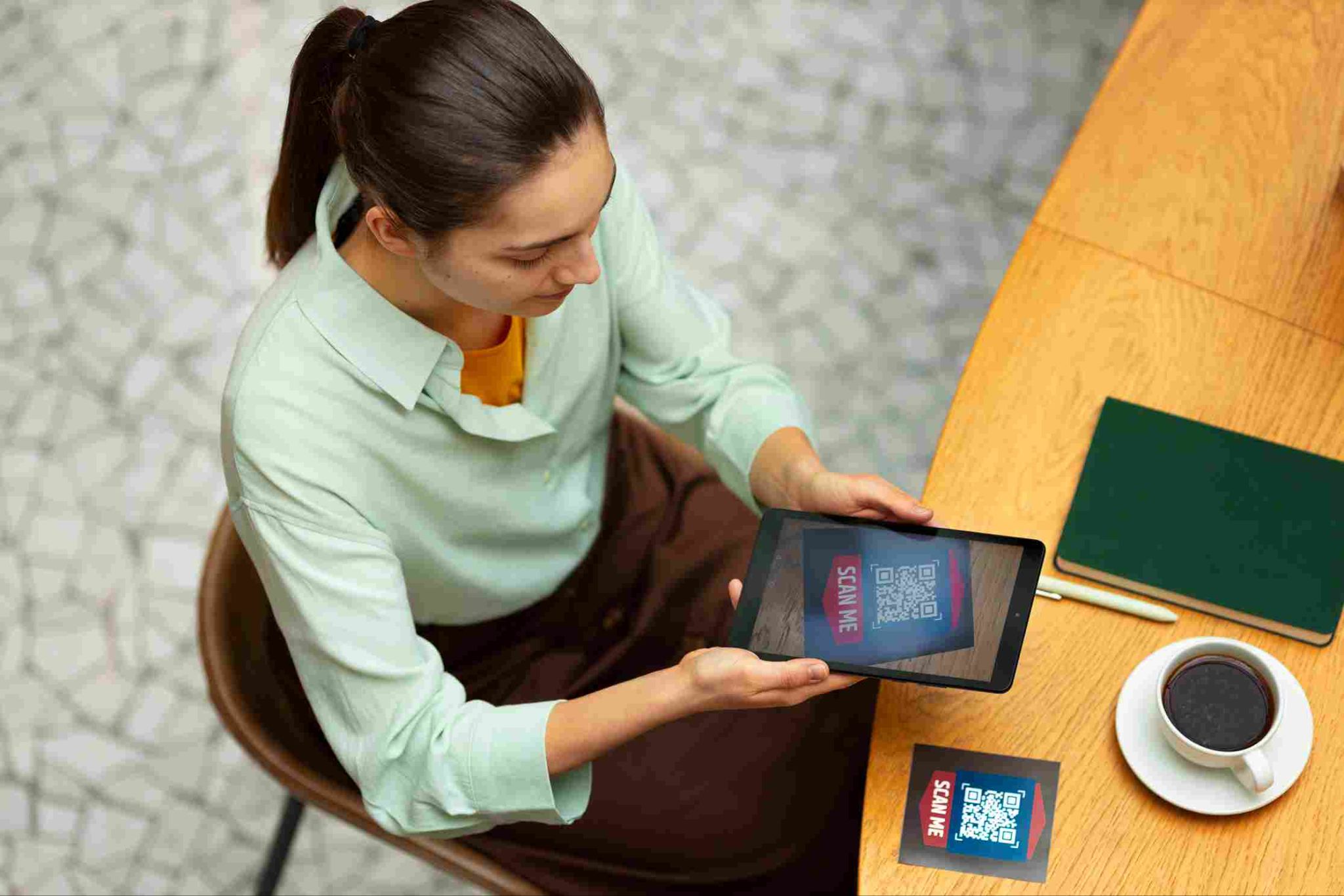
Why Small Businesses Benefit From Tablet Time Clock Kiosks
Large enterprises have long had access to professional attendance management systems. Small businesses have historically been left with either expensive dedicated hardware or inadequate manual methods. Tablet time clock kiosks have changed this by bringing professional-grade attendance management within reach of any business at a fraction of the traditional cost.
The benefits for small businesses are particularly significant for several reasons.
Every payroll dollar matters more. In a large company, a few percentage points of payroll waste due to time theft or errors is a large absolute amount but a small relative impact. In a small business where payroll is already a significant proportion of total costs, the same percentage represents a much more meaningful hit to the bottom line. Eliminating buddy punching and inaccurate time recording through a kiosk system directly improves profitability.
HR and administrative capacity is limited. Small businesses often do not have a dedicated HR team. The business owner, a manager, or an administrative assistant handles payroll alongside many other responsibilities. A kiosk system that automates attendance data collection and feeds directly into payroll exports dramatically reduces the time burden of payroll processing, freeing up capacity for more valuable work.
Choosing the Right Tablet for Your Kiosk
The first practical decision when setting up a tablet time clock kiosk is choosing the device. The good news is that the requirements are not demanding, and a wide range of tablets will work effectively.
iPad. The iPad is the most popular choice for time clock kiosks because of its build quality, reliable front-facing camera for facial recognition, and the polished interface it provides. Any modern iPad including the standard iPad, iPad Air, or iPad mini will work with OpenTimeClock through the iOS app or Safari browser. The iPad mini is a popular choice for kiosks because its smaller size fits easily on most wall mounts and works well for PIN and QR code clock-in as well as facial recognition.
Android tablet. Android tablets from manufacturers like Samsung, Lenovo, and Amazon provide good value, particularly for businesses where budget is the primary consideration. The OpenTimeClock Android app works on any modern Android tablet. Samsung Galaxy Tab models are a popular choice because of their reliable camera quality, which matters for facial recognition accuracy.
Windows tablet. Some businesses prefer Windows tablets because they fit into an existing Windows IT environment. OpenTimeClock works through any modern browser on Windows devices, making this a viable option even though a dedicated app is not available for Windows in the same way.
Choosing the Right Wall Mount and Enclosure
The physical mounting solution for your tablet time clock kiosk is important for both functionality and security. There are several types to consider depending on your environment and security requirements.
Simple wall mount brackets. These hold the tablet in a fixed position on the wall without enclosing it. They are the least expensive option and allow easy removal of the tablet when needed. They work well in lower-security environments such as offices and professional services businesses. The limitation is that they do not protect the tablet's buttons, ports, or charging connection from tampering.
Lockable kiosk enclosures. These fully enclose the tablet in a housing that covers the charging port and buttons, leaving only the screen exposed. They typically include a lock that prevents the tablet from being removed without a key. Lockable enclosures are the better choice for environments with higher security requirements, including warehouses, retail stockrooms, and anywhere the device might be at risk of unauthorized access or removal. They typically cost between fifty and two hundred dollars.
Countertop stands. For businesses where a wall mount is not practical, countertop stands that hold the tablet at an angle on a reception desk or counter are an alternative. These are less secure than wall mounts but easier to install and reposition.

Setting Up OpenTimeClock on Your Tablet Kiosk
Once you have your tablet and mounting solution, setting up the software is straightforward. OpenTimeClock can be running on your kiosk within a single afternoon.
Step 1: Create your free account. Go to the OpenTimeClock website and sign up for a free account. No credit card is required. The signup process takes less than ten minutes. Once your account is active, you will land on the admin dashboard where all configuration happens.
Step 2: Configure your company settings. In the settings section, enter your company name, set your time zone, configure your working hours, and set up your overtime rules. Take time with the overtime configuration because this affects how the system calculates payroll totals for every employee.
Step 3: Add your employees. For each employee, create a profile with their name, department, and role. Assign them a clock-in method, which might be facial recognition, PIN, QR code, RFID card, or a combination. If you are using facial recognition, employees will need to complete a brief enrollment process where they look at the camera and the system captures their facial data.
Step 4: Set up your shifts. In the scheduling section, create the shifts your employees work. OpenTimeClock's shift scheduling feature allows you to define start and end times, assign employees to specific shifts, and set clock-in window restrictions that prevent early or late clock-ins from going unnoticed.
Step 5: Configure the kiosk device. On your tablet, download the OpenTimeClock app from the App Store or Google Play, or open the platform in the device's browser. Log in with your admin credentials and enable kiosk mode, which locks the device into the attendance interface so employees cannot use it for other purposes.
Step 6: Mount and test. Secure the tablet in its wall mount or enclosure, connect the power cable, and test the clock-in process with a few employees before going live with the whole team.
Connecting Your Kiosk to Payroll
The full value of a tablet time clock kiosk is realized when attendance data flows directly into payroll processing without manual intermediate steps. This connection eliminates the most time-consuming part of the payroll cycle for most small businesses.
OpenTimeClock generates payroll-ready exports at the end of each pay period. The export includes total hours worked by each employee, overtime hours calculated based on your configured rules, break and meal period data if tracked through the system, project time allocations if applicable, and PTO days taken. All of this is available in formats including CSV, XLSX, PDF, and IIF.
These files can be imported directly into most payroll software or sent to your accountant or payroll provider. The manual process of collecting paper timesheets, adding up hours, and entering data into payroll is replaced by a two-minute export at the end of each pay period.
For small business owners who currently spend three to five hours on payroll administration every week, this time saving alone often justifies the kiosk setup within the first month.
Employee Communication and Rollout Tips
Introducing a tablet time clock kiosk to a team that has been using manual methods requires some communication and change management. Here are the most important steps for a smooth rollout.
Explain the why before the what. Tell your team why you are implementing the system before you explain how it works. Frame it around accuracy and fairness. The kiosk ensures everyone gets paid for exactly the hours they work. It eliminates the possibility of errors in their favor as well as against them. It protects employees from being accused of time they did not record.
Demonstrate the process. Walk every employee through the clock-in process before it goes live. Most employees need to see it once to feel comfortable with it. The process is simple and most people pick it up immediately.
Handle enrollment in a group session. For facial recognition, schedule a brief enrollment session where employees come to the kiosk and complete their enrollment. This takes one to two minutes per person and can be done as a group activity before the system launches.
Be clear about photo capture. Some employees will notice that their photo is taken at clock-in and may have questions. Be honest and direct about this. The photo is stored with their attendance record and can be reviewed by managers. It protects the employee as much as the employer.
Address concerns promptly. If employees raise concerns about privacy or the accuracy of the system, take those concerns seriously and answer them specifically. OpenTimeClock gives employees access to their own records through a personal portal, which is a useful tool for addressing accuracy concerns directly.
Why OpenTimeClock Is the Best Free Solution for Tablet Time Clock Kiosks
OpenTimeClock is a comprehensive, free workforce management platform that turns any tablet into a professional tablet time clock kiosk without any software cost. It supports facial recognition, PIN, QR code, RFID, and barcode clock-in from the same platform. It captures photos at every clock-in. It syncs data to the cloud in real time. It provides managers with a live attendance dashboard. It connects attendance data to shift scheduling, PTO management, overtime calculation, and payroll exports. And it stores all records securely in the cloud for the retention period that labor law requires.
The platform works on iOS, Android, and browser-based access, covering every common tablet option. It scales from a single kiosk for a team of five to multiple kiosks across different locations for larger operations. And it requires no dedicated hardware beyond the tablet itself.
Sign up for free at OpenTimeClock and have your tablet time clock kiosk running today.

Conclusion
Tablet time clock kiosks are one of the most practical and affordable tools a small business can implement to improve how it manages employee attendance. They eliminate manual timekeeping errors, prevent time fraud, reduce payroll processing time, and create the accurate records that compliance requires.
The setup is simpler than most business owners expect. A tablet you may already own, a wall mount that costs between twenty and two hundred dollars, and OpenTimeClock free software is all you need to be up and running with a professional attendance system within a single afternoon.
FAQ’s
Q1. What is a tablet time clock kiosk and how does it work for small businesses?
A tablet time clock kiosk is a tablet device mounted near a workplace entrance running attendance management software. Employees use it to clock in and out using facial recognition, PIN, QR code, or RFID.
Q2. What tablet is best for setting up a time clock kiosk?
Any modern iPad, Android tablet, or Windows tablet works as a tablet time clock kiosk with OpenTimeClock. The most important features are a quality front-facing camera for facial recognition and the ability to run continuously while plugged in.
Q3. How does a tablet kiosk prevent employees from clocking in for each other?
OpenTimeClock prevents buddy punching through facial recognition that requires the actual registered employee to be physically present, photo capture at every clock-in that creates a visual audit trail, and optional device restrictions that limit clock-ins to authorized hardware only.
Q4. How does the tablet kiosk attendance data connect to payroll?
OpenTimeClock generates payroll-ready exports at the end of each pay period in formats including CSV, XLSX, PDF, and IIF. These files include total hours worked, overtime calculations, break time data, PTO days taken, and project time if applicable.
Q5. Is OpenTimeClock free for small businesses setting up tablet time clock kiosks?
Yes. OpenTimeClock is completely free with no credit card required. The free plan includes all clock-in methods, facial recognition, photo capture, real-time attendance dashboard, shift scheduling, PTO management, overtime calculation, detailed reporting, and payroll exports.