The Complete Guide to Using an iPad Kiosk as an Employee Time Clock
Learn how to set up a time clock app for iPad kiosk to track employee attendance accurately, prevent fraud, and simplify payroll for any business.
An iPad mounted at the entrance of your workplace, running a dedicated time tracking interface, ready for employees to clock in and out throughout the day. This is the iPad kiosk time clock setup, and it is one of the most popular and practical attendance solutions available for small and medium sized businesses today.
The appeal is straightforward. An iPad is a device most businesses already own or can purchase affordably. When paired with the right time clock app for iPad kiosk, it becomes a fully functional attendance station that replaces paper timesheets, eliminates manual hour calculations, captures verified identity through the built in camera, and feeds accurate data directly into payroll reports. All of this from a device that costs a fraction of what a dedicated biometric time clock terminal would.
In this guide we will walk through everything you need to know about using an iPad as an employee time clock, from choosing the right time clock app for iPad kiosk to setting it up correctly, securing it against misuse, and getting the most out of the attendance data it collects. We will also show how Open Time Clock delivers a complete, free solution perfectly suited to iPad kiosk deployment.
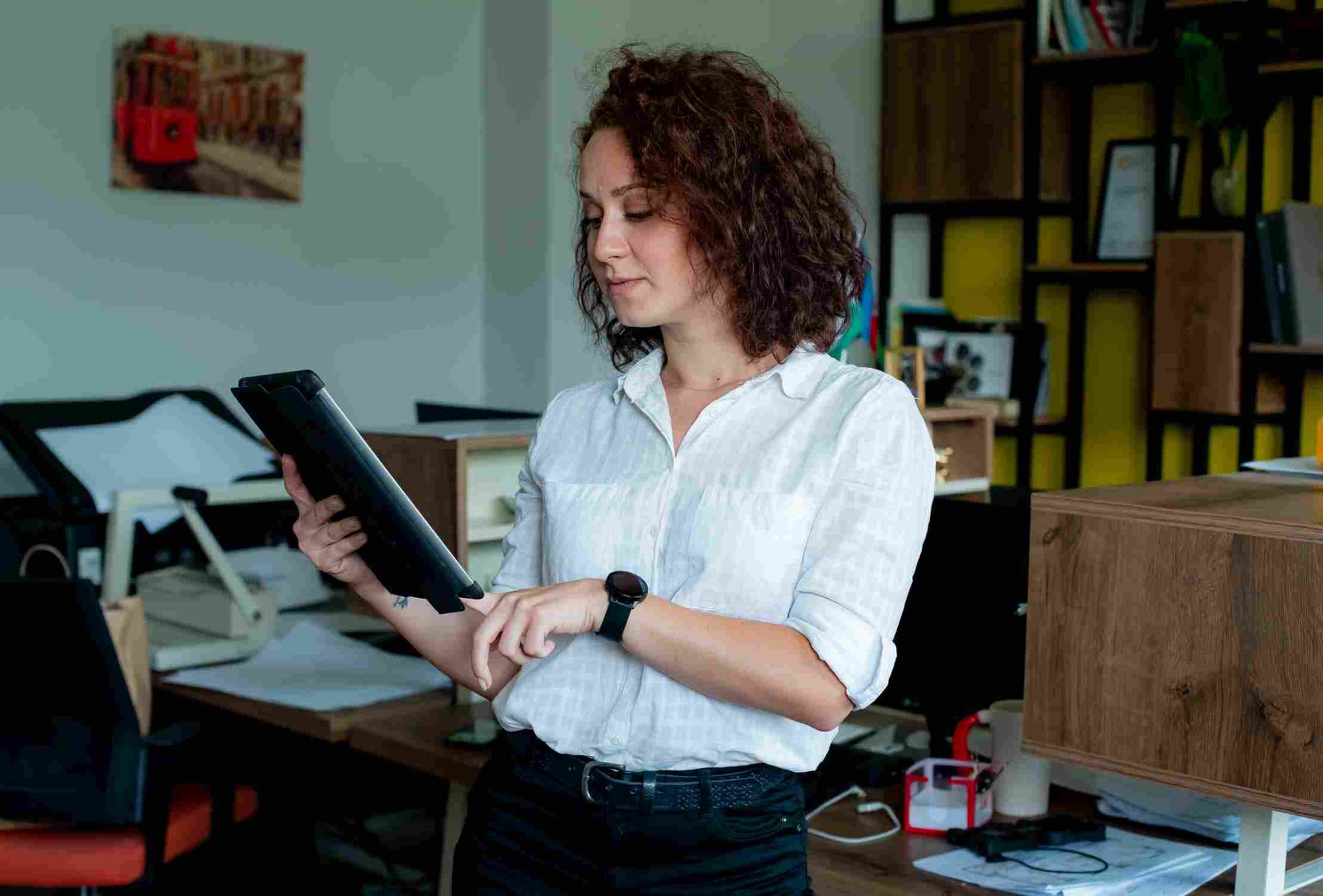
Why Businesses Choose an iPad Kiosk for Time Tracking
The iPad kiosk approach to employee time tracking has grown in popularity for good reasons that go beyond convenience.
Cost Effective Hardware
Traditional biometric time clock terminals from dedicated hardware vendors can cost hundreds or even thousands of dollars per unit, with additional fees for installation, maintenance contracts, and software licenses. An iPad running a free time clock app for iPad kiosk delivers equivalent or superior functionality at a fraction of the total cost. The iPad itself is a versatile device that can be used for other purposes when not serving as a time clock, and replacement or upgrade is straightforward when needed.
Touchscreen Interface Familiar to All Employees
Employees of all ages and technical backgrounds are comfortable with touchscreen devices. The intuitive swipe and tap interaction of an iPad requires no training for basic use. When a time clock app presents a clean, simple interface on that familiar touchscreen, employees can learn the clock in process in seconds without any formal instruction.
Front Camera for Identity Verification
Every iPad includes a high quality front facing camera. This built in hardware is all that is needed for photo capture at clock in and for facial recognition identity verification. No additional biometric scanner needs to be purchased or installed. The camera that employees use every day for video calls becomes a powerful attendance verification tool when paired with the right software.
Single Device Serves an Entire Team
One iPad mounted in a central location can handle the clock in and clock out process for an entire team. Employees approach the device briefly at the start and end of their shift, complete the clock in process in seconds, and the iPad is immediately ready for the next person. This shared device model works well for teams of any size and eliminates the need for every employee to have their own app or device.
Choosing the Right Time Clock App for iPad Kiosk
Not every time tracking app works well as a time clock app for iPad kiosk. General purpose time tracking apps designed for individual use on personal devices have a different design philosophy from kiosk dedicated systems. Here is what to look for.
Kiosk Mode or Dedicated Interface
A proper kiosk time clock app should be able to run in a dedicated mode that locks the iPad to the clock in interface. Employees should not be able to navigate away from the app, access other iPad functions, or view other employees' records from the shared device. Look for apps that support a locked kiosk display that presents only what employees need to see for clocking in and nothing else.
Multiple Clock In Methods on the Same Device
The best time clock app for iPad kiosk supports multiple ways for employees to identify themselves, including name selection from a list, QR code scanning using the iPad camera, PIN entry, and facial recognition. Different businesses prefer different methods, and having options on the same device means businesses can choose what works best for their team without switching platforms.
Photo Capture and Facial Recognition
Because the iPad is a shared device, identity verification is more important here than on personal device clocks in systems. Anyone can walk up to the iPad and tap any employee's name. Photo capture at clock in creates a visual record of who actually performed each clock in. Facial recognition goes further by automatically confirming identity before accepting the entry.
Automatic Screen Reset After Each Clock In
After an employee completes their clock in, the screen should automatically return to the main interface within a few seconds so the device is ready for the next person. Manual screen resets create delays and occasionally leave one employee's session active while the next person approaches the device.
Cloud Sync for Real Time Data
All clocks in data recorded on the iPad kiosk should sync immediately to a cloud dashboard where managers can see attendance in real time from any device. This cloud connection is what transforms the iPad from a simple recording device into a fully integrated attendance management system.
Setting Up an iPad Kiosk Time Clock
Setting up an iPad as a time clock kiosk is a straightforward process that most business owners can complete without technical assistance. Here is how it works with Open Time Clock.
Step 1: Create Your Open Time Clock Account
Creating an account with Open Time Clock is free, takes just a few minutes, and requires no credit card. Once the account is created, the administrator accesses the full dashboard where employees, departments, and clock in settings are configured.
Step 2: Add Your Employees
Employee profiles are created in the dashboard by entering each employee's name and basic details. Profile photos can be uploaded at this stage, which are used for comparison during photo verification and are displayed alongside names in the name selection interface on the iPad.
Step 3: Configure Your Clock In Settings
Choose the clock in the method that works best for your team. Name selection displays a list of all employees for the employee to tap their name. QR codes assign each employee a unique scannable badge. Facial recognition uses the iPad's front camera to verify identity automatically. PIN entry adds a security layer to name selection. Open Time Clock supports all of these methods and they can be combined for maximum security.
Step 4: Open Open Time Clock on the iPad
Open the Safari browser or install the Open Time Clock app on the iPad. Navigate to the clock interface which is designed for touchscreen use and optimized for the iPad display. The interface automatically presents the configured clock in method in a clean, full screen layout.
Step 5: Secure the iPad in Kiosk Mode
Use the iPad's built in Guided Access feature to lock the device to the Open Time Clock interface. Guided Access prevents employees from exiting the app, adjusting iPad settings, or accessing other applications. The iPad effectively becomes a single purpose time clock terminal that employees cannot tamper with.

Features That Make Open Time Clock the Best Choice for iPad Kiosk
Open Time Clock is one of the most feature complete and cost effective solutions for time clock app for iPad kiosk deployment. Here is a detailed look at the features that make it stand out for this specific use case.
Facial Recognition Through the iPad Camera
Open Time Clock's facial recognition feature uses the iPad's front camera to perform AI powered biometric identity verification at every clock in. When an employee approaches the kiosk, the system captures their face, compares it to their registered profile, and accepts or rejects the clock in based on the match. This happens automatically in seconds without the employee needing to do anything beyond standing in front of the camera.
This level of identity verification completely eliminates buddy punching from a shared iPad kiosk setup. An employee cannot clock in for a colleague because the facial recognition will reject the attempt if the face does not match the profile.
QR Code Scanning Using the iPad Camera
Open Time Clock's QR code time tracking turns the iPad's camera into a QR code scanner. Each employee is assigned a unique QR code badge that they hold up to the iPad camera to clock in. The scan takes less than a second and immediately records the attendance entry with a precise timestamp.
QR code scanning is particularly fast in high traffic environments where many employees need to clock in within a short window at shift start. The speed of the scan process prevents queuing even when ten or twenty employees arrive at the same time.
GPS Location Recording at the Kiosk
Even though the iPad is at a fixed location, Open Time Clock's GPS tracking feature records the location of the device with every clock in entry. This location data is stored with the attendance record and contributes to the compliance documentation of the organization. For businesses with geofencing configured, the system confirms that the kiosk device is within the approved boundary at the time of each clock in.
Real Time Dashboard for Managers
All clock in data from the iPad kiosk syncs immediately to the Open Time Clock cloud dashboard. Managers can see in real time which employees have clocked in, who is currently on the clock, and who has not yet arrived for their scheduled shift. Automatic alerts notify managers of missed clock ins and other attendance exceptions as they occur, enabling quick response to coverage gaps.
Over 80 Payroll Reports From Kiosk Data
All attendance data captured through the iPad kiosk feeds directly into Open Time Clock's reporting system. Over 80 report formats are available covering total hours, overtime, tardiness, department summaries, and individual attendance histories. Reports export in Excel and PDF formats for direct use in payroll processing. For businesses that previously spent hours compiling attendance data manually at the end of each pay period, this automated reporting represents a dramatic time saving.
Leave Management Integration
Approved leave from Open Time Clock's integrated leave management module is automatically reflected in attendance records and payroll reports. When an employee takes an approved vacation day, the system accounts for it correctly in the payroll calculation without requiring any manual adjustment.

Conclusion
An iPad mounted at the workplace entrance, running a well configured time clock app for iPad kiosk, gives businesses a professional grade attendance station that costs a fraction of dedicated hardware terminals and delivers equal or superior functionality. Photo capture, facial recognition, QR code scanning, and real time cloud sync are all available through the iPad's built in hardware and the right software.
The key is choosing the right app. Open Time Clock delivers the full feature set that a successful iPad kiosk deployment requires, completely free, with no hardware costs beyond the iPad itself and no ongoing subscription fees.
FAQ’s
Q1. What is a time clock app for iPad kiosks and how does it work?
A time clock app for iPad kiosk is a time tracking application that runs on an iPad set up as a shared attendance station. Employees approach the iPad and clock in using one of the available methods such as tapping their name from a list, scanning a QR code badge, entering a PIN, or using facial recognition through the front camera.
Q2. How does facial recognition on an iPad prevent buddy punching?
Open Time Clock's facial recognition feature captures the face of the person standing in front of the iPad at the moment of clock in and compares it to the registered employee profile using AI powered biometric matching. If the faces match, the clock is accepted. If they do not match, the clock is rejected.
Q3. Do employees need to download an app on their own phones to use the iPad kiosk?
No. The iPad kiosk is a shared device that all employees use without any requirement to install anything on their personal phones. Employees interact with the kiosk directly at the shared device. Personal phone apps are only needed if the business also wants to offer individual mobile clocks for specific employee types such as field workers or remote staff alongside the kiosk.
Q4. How should the iPad be secured so employees cannot exit the time clock app?
The iPad's built in Guided Access feature locks the device to a single app, preventing employees from exiting, adjusting settings, or using other applications. Enabling Guided Access before deploying the kiosk effectively turns the iPad into a single purpose time clock terminal. A physical enclosure or mount that covers the home button adds a further layer of security.
Q5. Is Open Time Clock free for iPad kiosk time tracking?
Yes. Open Time Clock is completely free with no credit card required, no per user fees, and no feature restrictions. All features relevant to iPad kiosk deployment, including facial recognition, QR code scanning, name selection with photos, PIN verification, GPS location recording, real time cloud sync, leave management, automated overtime calculation, and over 80 payroll report formats, are available at no cost for businesses of any size.