How to Get the Most Value from Your GPS Time Tracking App
Learn how to get maximum value from your GPS time tracking app with setup tips, best practices, and features that save time and reduce errors.
A GPS time tracking app can be one of the most valuable tools in your workforce management setup. It verifies where employees are when they clock in, stops time fraud, and gives managers real-time visibility into a team that is spread across multiple locations.
But many businesses use only a fraction of what their GPS time tracking app can do. They set it up for basic clock-ins and never configure geofencing, notifications, or payroll export. They end up with location data they never review and reports they never use.
This guide shows you how to get real, measurable value from every feature your GPS time tracking app offers, from the first day of setup to every pay period after that.

Step 1: Configure Geofencing Before Employees Start Using the App
The most important setup step that most businesses skip is geofencing. Basic GPS records where an employee clocked in. Geofencing goes further by blocking clock-ins from outside an approved location.
Without geofencing, an employee can technically clock in from their car before they reach the job site, from home, or from anywhere with a signal. The GPS data tells you it happened, but it does not stop it.
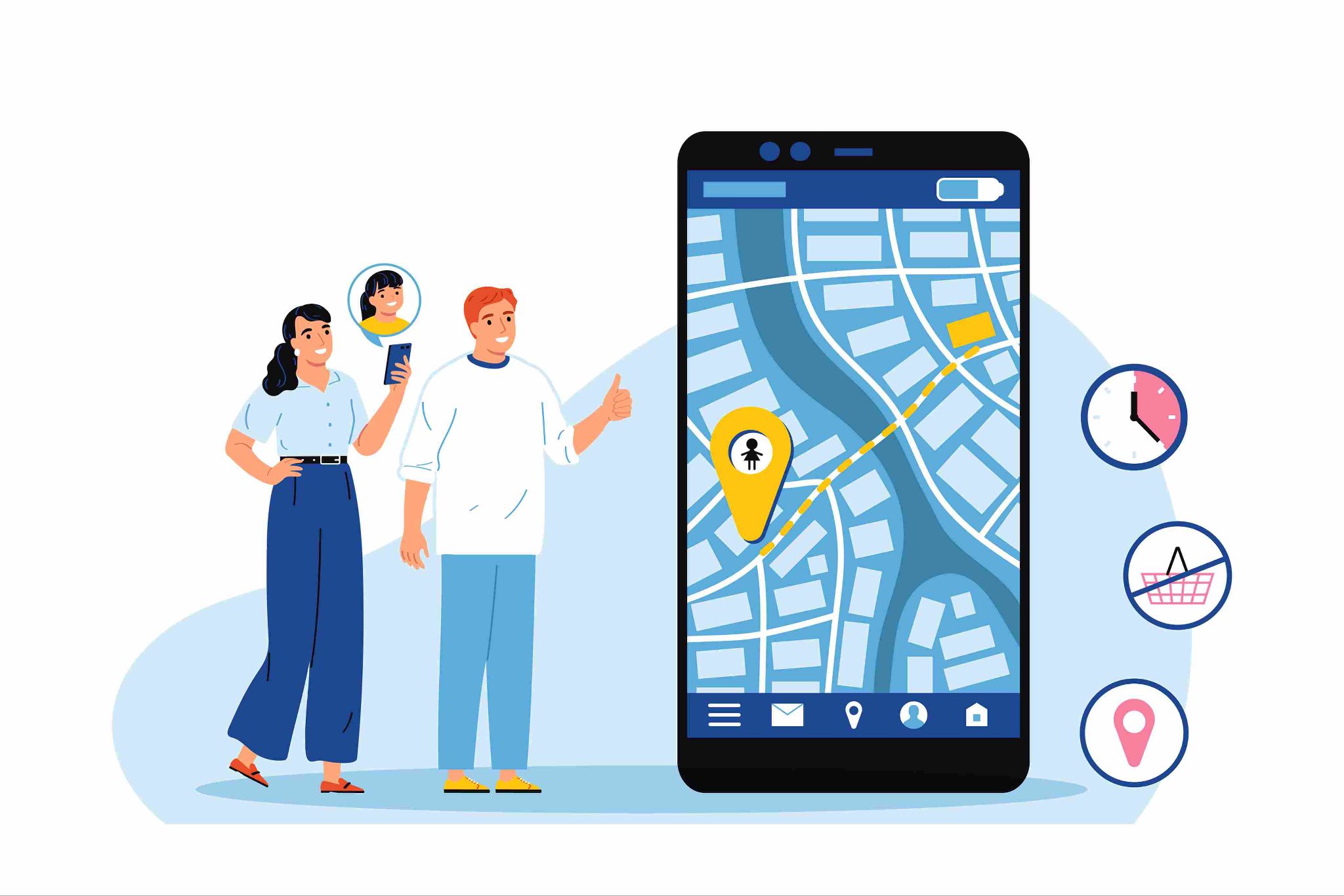
Open Time Clock GPS and geofencing lets you define the approved clock-in zone for each job site or office location using a Google Maps interface. You set a center point and a radius. Any clock-in attempt outside that boundary is automatically rejected before it enters the attendance record.
Set up your geofences before your first employee clocks in. It takes about five minutes per location and has an immediate effect on attendance accuracy. For field teams with multiple active job sites, you can have separate geofences for each one running simultaneously.
Step 2: Add Identity Verification on Top of GPS
GPS confirms where the clock-in happened. It does not confirm who performed it. A phone can be left at a job site. A coworker can use someone else's device. GPS alone cannot stop buddy punching.
Facial recognition closes this gap. When enabled, the app scans the face of the person clocking in and matches it against the stored employee profile. If the faces do not match, the clock-in is rejected. GPS and facial recognition together confirm both location and identity at every punch.
Photo capture is a simpler alternative if facial recognition is not available on a specific device. The app takes a photo at every clock-in and stores it with the attendance record. Managers can review the photos if anything looks suspicious, and the record becomes a visual audit trail for every punch.
Step 3: Enable Offline Mode for Low-Signal Areas
One of the most practical features of a modern GPS time tracking app is offline mode. Many field workers operate in areas with weak or no internet signal. Construction sites, rural properties, basement levels, and remote job locations all present connectivity challenges.
Open Time Clock offline clock-in allows employees to clock in and out with no connection at all. The timestamp and last-known GPS location are stored locally on the device. When the device reconnects to the internet, all offline punches sync automatically to the cloud.
Managers see a complete, gap-free attendance record once the sync completes. The offline punch is treated identically to an online punch in all payroll reports.
If your team works in any environment with unreliable connectivity, confirming this feature is active before launch is essential. A GPS app that fails when the signal drops is not reliable enough for real field work.
Step 4: Set Up Real-Time Alerts for Late Arrivals and No-Shows
A GPS time tracking app is most valuable when it gives managers information they can act on, not just data to review later. Real-time alerts transform attendance tracking from a passive record-keeping system into an active management tool.
Configure your alert settings to notify managers immediately when a scheduled employee does not clock in by their shift start time. A late arrival alert fires the moment a scheduled worker punches in after their start time. A no-show alert fires if no punch is recorded within a set window after the shift was supposed to begin.
These alerts let managers respond while the problem is still happening. They can call the missing employee, reassign tasks, or arrange coverage before the shift is disrupted. Without alerts, the manager discovers the problem at the end of the day when it is too late to do anything productive about it.
Step 5: Review GPS Location Data in Your Reports
GPS data only helps your business if someone is actually looking at it. Set up a regular review of location-verified attendance records as part of your weekly or monthly management routine.
Look for clock-ins that happened at the edge of or just outside your geofence boundaries. Look for patterns where specific employees consistently punch in from locations that are slightly off from the main work area. Look for any punches that show an unusual location that does not correspond to any known job site.
This review does not need to take long. Filtering your attendance report by location or running a comparison of actual clock-in coordinates against approved site coordinates takes only a few minutes with the right platform.
If you spot repeated location irregularities from the same employee, follow up with a direct conversation before the pattern becomes a documented pattern of time fraud.
Step 6: Use GPS Data to Improve Job Site Management
Your GPS time tracking app collects location data that goes beyond just attendance. Over time, it builds a picture of how crews move between locations, which sites see the most overtime, and whether staffing levels match the work actually being done on each site.
This information is useful for project planning. If a specific job site consistently shows employees working longer than scheduled, that is a signal worth investigating. If a site shows frequent missed punches, there may be a connectivity issue or a management gap that needs to be addressed.
Use this data to make scheduling decisions based on what has actually happened at similar sites in the past, rather than guessing based on general estimates.
Step 7: Connect GPS-Verified Hours to Payroll Export
The GPS verification your app performs is most valuable when it is connected directly to payroll. If managers have to re-enter verified hours into a separate payroll system by hand, you reintroduce the manual errors that GPS tracking was designed to eliminate.
Open Time Clock payroll and attendance reports generate payroll-ready summaries from GPS-verified clock-in data automatically. Hours, overtime, breaks, and PTO export directly in CSV, Excel, and QuickBooks IIF formats, compatible with QuickBooks, ADP, Gusto, and other platforms.
The export process takes a few minutes at the end of each pay period. No copying. No reformatting. No manual data entry. The GPS-verified data goes straight to payroll in the format that your payroll system expects.
Step 8: Train Your Team on Why GPS Tracking Is Used
A GPS time tracking app works better when employees understand why it is there. If the system is rolled out without any explanation, employees may feel like they are being watched without understanding the reason. That creates resentment and resistance.
Explain to your team that GPS tracking is used for two reasons. First, it confirms that everyone is paid for the hours they actually worked at the right location. Second, it protects the business and the employees in case of any dispute about hours or location. Most employees respond positively to this framing because it shows them that the system is fair, not punitive.
Also explain that GPS is only recorded at clock-in and clock-out events. The app is not tracking their location continuously throughout the day. This distinction matters to employees who are concerned about privacy.
Step 9: Keep Geofences Updated as Job Sites Change
A geofence that was accurate when a project started may no longer match the work area as the project progresses. Construction projects move. Service routes change. New office locations are added. Geofences that do not reflect current work areas either block legitimate clock-ins or allow punches from locations that are no longer active.
Review your geofence settings monthly or at the start of each new project phase. Update boundaries when the work area changes. Remove geofences for completed job sites so they do not create confusion when employees work nearby in the future.
This maintenance step takes only a few minutes per update and keeps your location verification accurate over time.
Step 10: Use the Audit Log for Dispute Resolution
Every serious GPS time tracking app includes an audit log that records every clock-in, clock-out, and any changes made to attendance records. This log is your best tool for resolving disputes about hours, location, or payroll.
When an employee says they clocked in but the record does not show it, the audit log tells you whether the punch happened and where it was recorded from. When a contractor disputes a billed hour total, the audit log provides the timestamped, GPS-verified evidence of every punch in the dispute window.
The audit log is also useful in compliance situations. If a labor department ever questions your time records, a detailed log showing every clock-in with GPS coordinates and a manager approval timestamp is far more defensible than a paper timesheet or a spreadsheet.
How Open Time Clock Maximizes GPS App Value
Open Time Clock is free for unlimited users and includes every feature covered in this guide at no additional cost. GPS tracking and geofencing, offline mode, facial recognition, real-time alerts, payroll export, and a full audit log are all part of the same free platform.
Most businesses that switch from a basic clock-in system to Open Time Clock see improvements in attendance accuracy and payroll efficiency within the first pay period. GPS-verified hours remove the ambiguity from attendance records. Geofencing eliminates off-site punches. Real-time alerts help managers respond to attendance issues before they affect operations.
The setup process takes about 15 to 30 minutes for a small team. Geofences, overtime rules, and shift schedules can all be configured before the first employee clocks in, so the system works correctly from day one rather than requiring weeks of adjustment.

Conclusion
A GPS time tracking app delivers real value when every feature is configured correctly and used consistently. GPS alone is not enough. Geofencing, identity verification, real-time alerts, offline mode, and payroll export together create a system that actually solves the attendance, payroll, and compliance problems that manual timesheets could never address.
Each step in this guide adds a layer of accuracy or efficiency on top of the one before it. Implement them in sequence and you will have a complete, reliable system that saves time every pay period and protects your business every time a dispute or audit arises.
FAQ’s
Q1. What does a GPS time tracking app actually do?
A GPS time tracking app records the exact time and GPS location when an employee clocks in or out. Geofencing restricts clock-ins to approved locations. Real-time alerts notify managers of late arrivals. And payroll-ready reports export verified hours directly to payroll software.
Q2. How does geofencing work in a GPS time tracking app?
Geofencing creates a virtual boundary around an approved work location. When an employee tries to clock in, the app checks whether their device is inside that boundary. If they are outside it, the clock-in is blocked automatically. If they are inside it, the clock-in goes through with GPS coordinates recorded.
Q3. What happens when a GPS time tracking app has no internet connection?
Good apps include offline mode, which allows employees to clock in without any internet connection. The timestamp and last-known GPS location are stored on the device locally and sync to the cloud automatically once a connection is available.
Q4. How can I get employees to accept GPS tracking?
Explain why it is used: to ensure everyone is paid accurately and to protect the business and employees in disputes. Clarify that GPS is only recorded at clock-in and clock-out, not tracked continuously. Most employees accept location tracking when they understand it applies equally to everyone and is not a form of personal surveillance.
Q5. Is Open Time Clock a free GPS time tracking app?
Yes. Open Time Clock is completely free for unlimited users. GPS tracking, geofencing, offline mode, facial recognition, real-time alerts, payroll export, and audit logs are all included at no cost.