Users
Users in Opentimeclock refer to individuals who have access to the time tracking and management system. They can be categorized into different roles, such as employees, managers, and administrators, each with specific permissions and responsibilities. Employees can clock in and out, view their time entries, and access schedules. Managers and administrators, on the other hand, can manage employee records, approve timesheets, and generate reports, ensuring efficient workforce management.
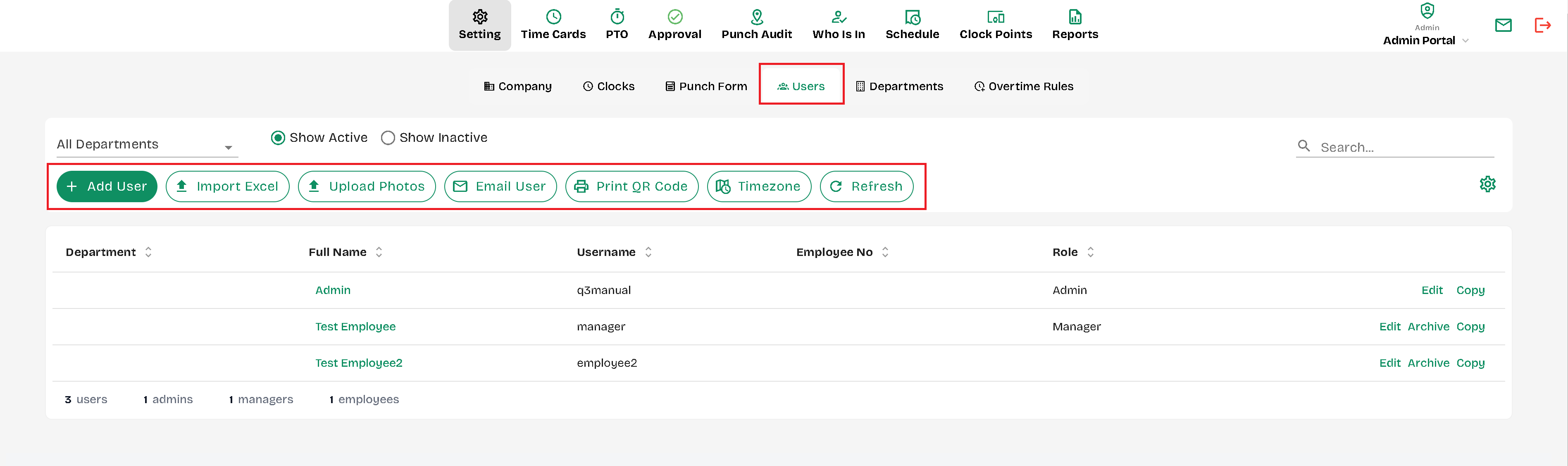
The Users tab provides an overview of all personnel in the system.
- Add User – Create a new employee, manager, or admin account.
- Email to User – Send login details to selected users.
- Import Excel – Upload a list of users from an Excel file with the provided template.
- Print Barcode – Generate barcodes for employee time clock use.
- Archive – Move selected users to the archived list (inactive).
- Show Archived – Display all archived users in the list.
- Sort Order (Last Name, First Name, Employee No, Role) – Choose how users are displayed (by name order).
- Department Filter – View users by department.
- Search Box – Find users by name, username, or ID.
- Edit – Change user details.
- Copy – Duplicate a user profile.
- Archive – Move an individual user to the archived list (inactive).
- Show Archived Users Button – Expand to view archived users.
- Unarchive/Delete Selected Users – Restore archived users or permanently delete them.
Created with the Personal Edition of HelpNDoc: Full-featured EBook editor