How to add Employees
Follow the steps below on how to ADD USERS/EMPLOYEES.
Step 1: Log in to your admin access account.
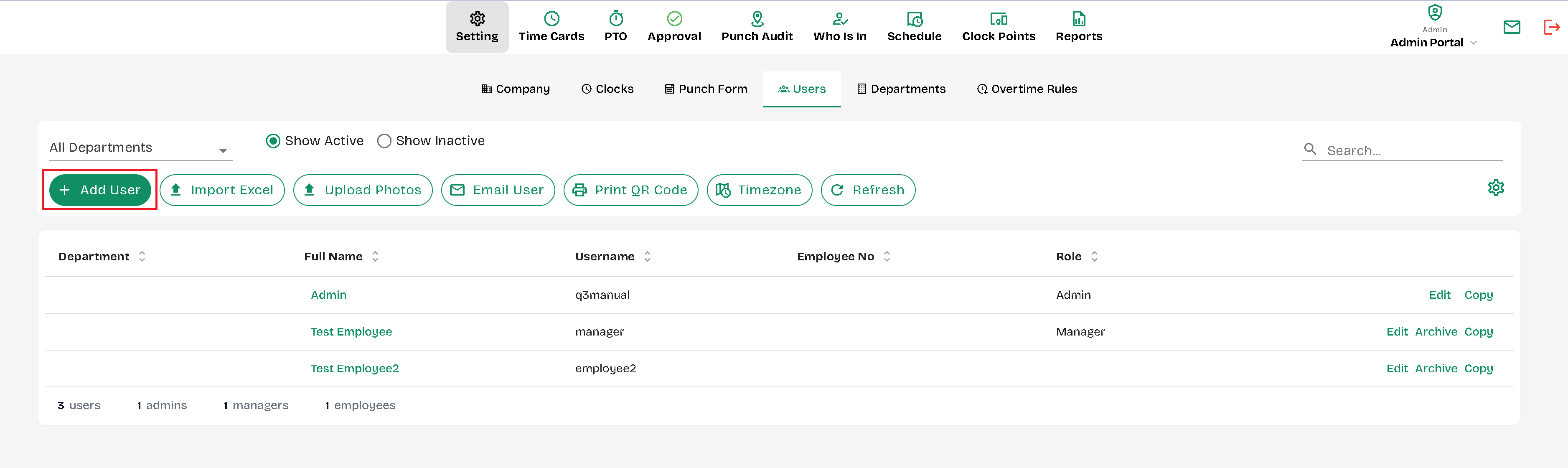
Step 2: Go to the SETTING tab and click the USERS tab.
Step 3: Click the ADD USER button.
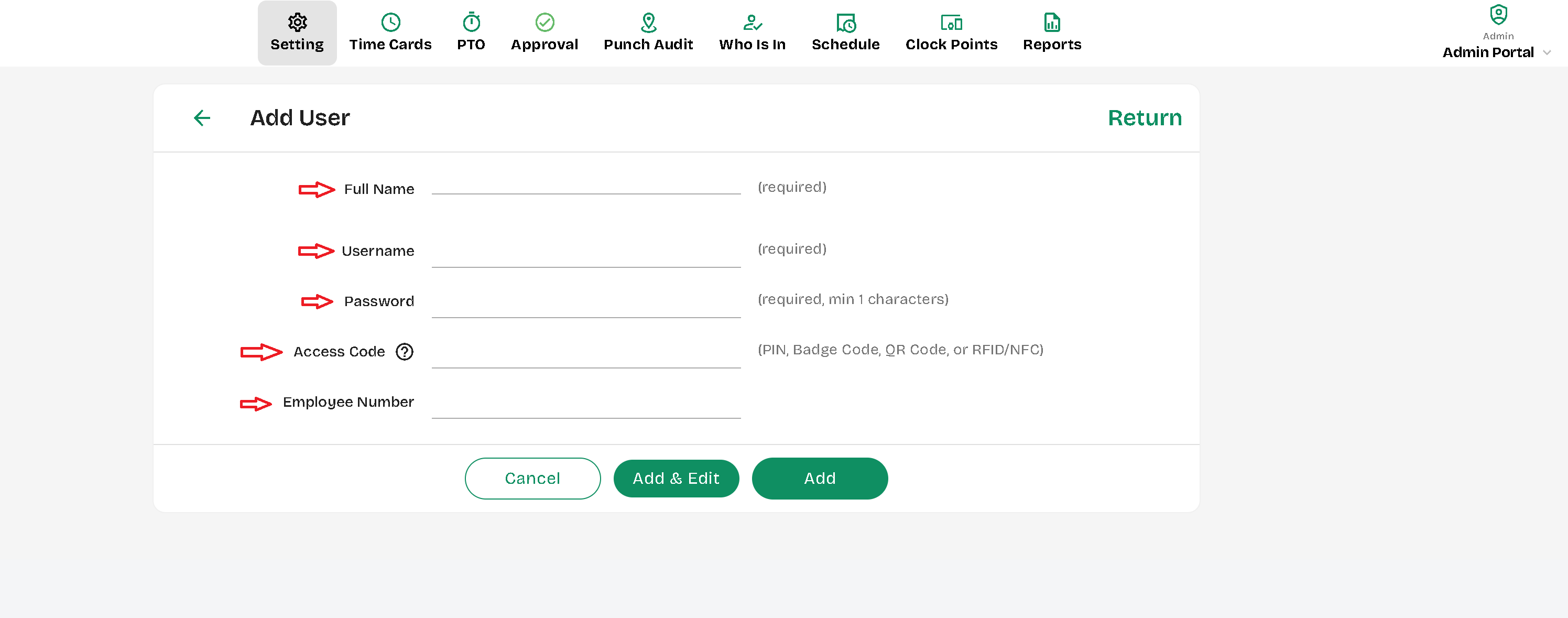
Step 4: Fill out the given information for employees.
Step 5: Click ADD or Click ADD & Next to proceed adding another employee.
---
---
Second phase:
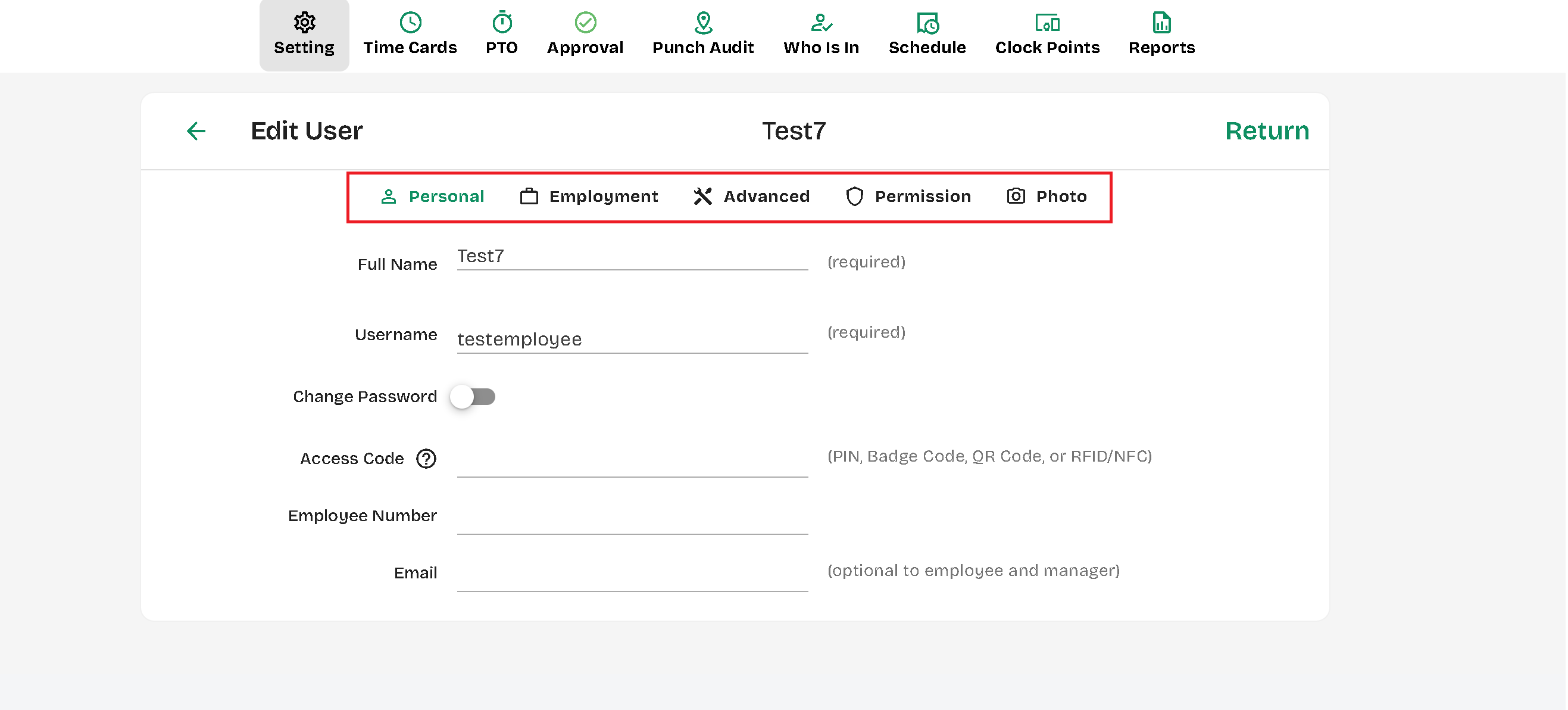
Once the employee had been added you can click on "Edit" and the following options will reflect:
1. Personal: Change or update the full name, username, access code (PIN, Badge code, QR Code, or RFID/NFC), Employee number and Email.
2. Employment: Here you may assign the departments, Overtime Rules, Hourly Rate, Timezone, Auto Deduct break and Clock Point restriction.
3. Advanced: You may turn off or on the Overtime Auto Clock Out, set the Rate Type, Exempt Status, Employee Type, Hired Date, and add notes.
4. Permissions: Depending on the role you can remove or provide the permissions you'd like the user have.
5. Photo: You can upload or take a picture on each user to activate the Face Recognition feature to clock in/out.
Created with the Personal Edition of HelpNDoc: Transform Your Documentation Workflow with HelpNDoc's Intuitive UI