Notifications
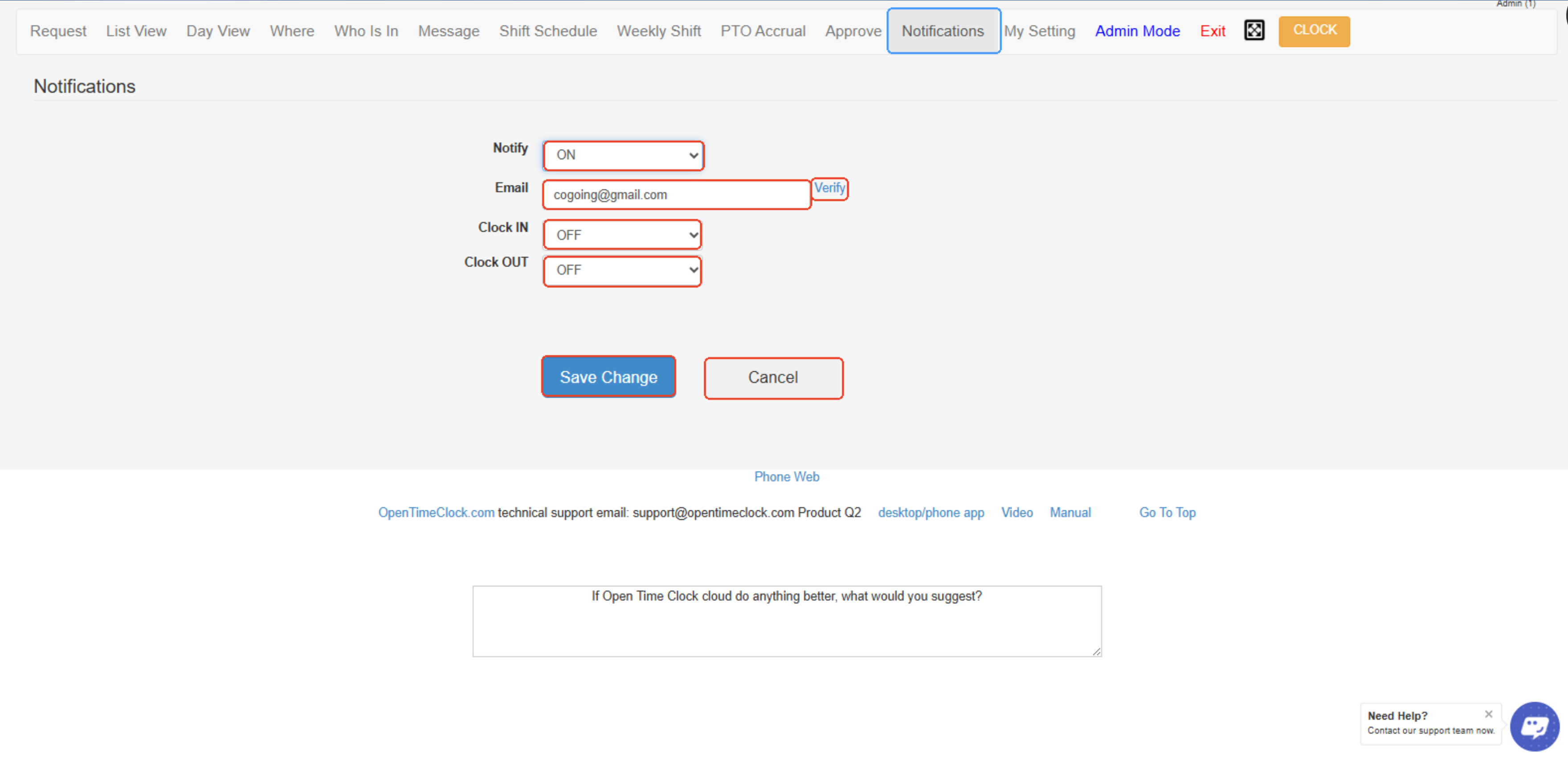
Receive alerts and updates about important activities such as shift changes, approvals, PTO requests, and other time-related events, helping keep employees and managers informed in real time.
- Notify (ON/OFF) – Enables or disables the notification feature. When turned ON, the system will send email notifications for selected events.
- Email Field & Verify Button – The user enters an email address to receive notifications. The Verify button confirms the email address is valid before notifications can be sent.
- Clock IN Notification (ON/OFF) – When turned ON, the system sends an email alert each time the user clocks in.
- Clock OUT Notification (ON/OFF) – When turned ON, the system sends an email alert each time the user clocks out.
- Save Change Button – Saves the selected notification preferences and email address.
- Cancel Button – Cancels any unsaved changes and keeps the previous settings.
✅ This Notifications page allows users to manage how they receive email alerts for their clock-in and clock-out activities in OpenTimeClock.
Created with the Personal Edition of HelpNDoc: Experience a User-Friendly Interface with HelpNDoc's Documentation Tool