My Settings
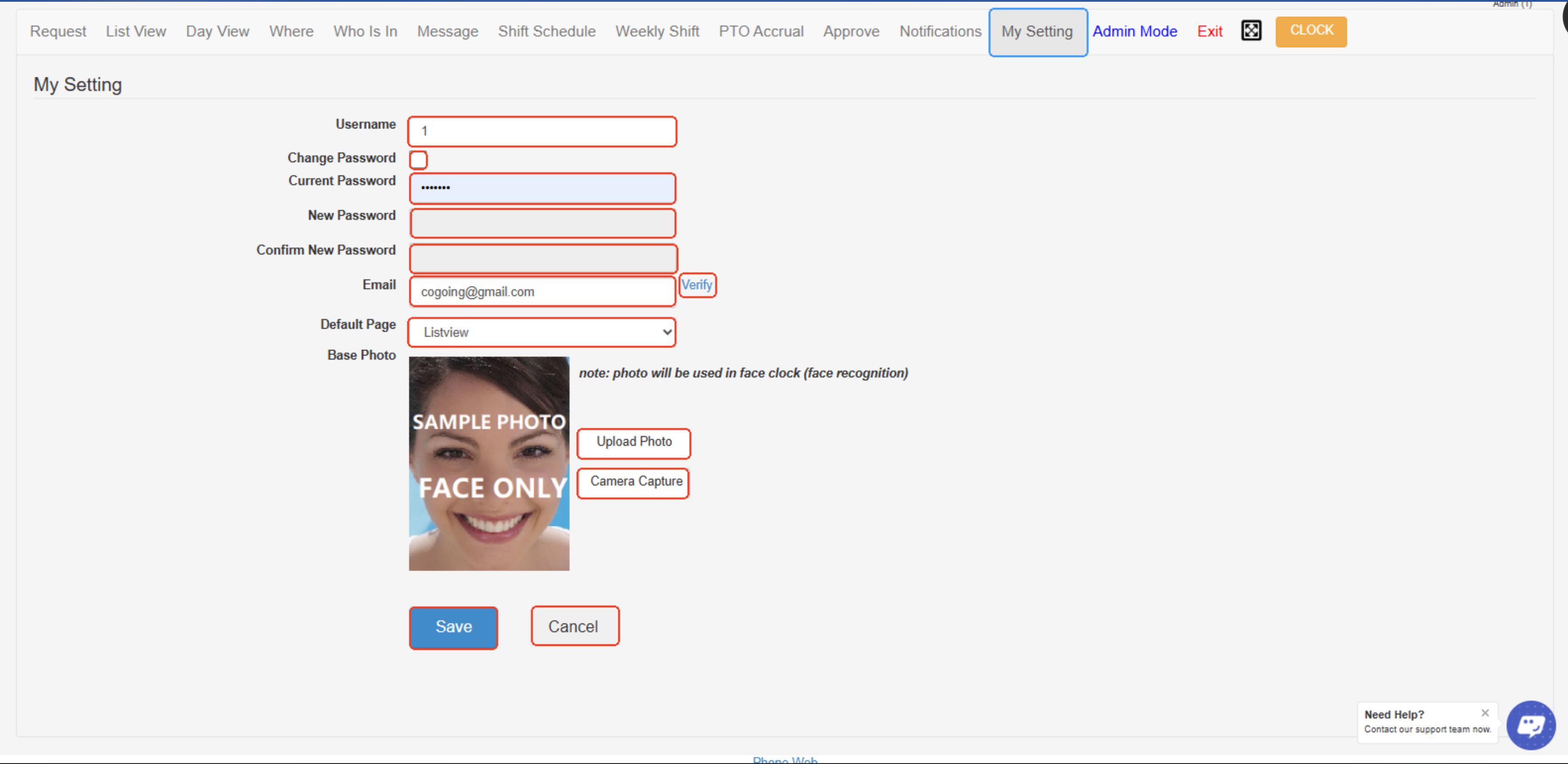
It allows users to manage their personal account preferences, such as updating login details, adjusting time zone settings, and customizing notification or display options for their profile.
- Username – Displays the employee’s username used for logging into the system.
- Change Password Checkbox – Enables the fields for updating the current password.
- Current Password – The employee’s existing password, required to authorize any password change.
- New Password – Field where the employee enters a new password.
- Confirm New Password – Field to re-enter the new password for confirmation.
- Email – The user’s registered email address for verification and communication; click Verify to confirm the email.
- Default Page – Allows the user to set the default page that appears after login (e.g., List View, Day View, etc.).
- Base Photo – Displays the photo used for face recognition when clocking in/out.
- Upload Photo – Option to upload a new photo from your computer for face recognition.
- Camera Capture – Option to take a new photo using your device’s camera for use in face recognition.
- Save Button – Saves any changes made to the settings.
- Cancel Button – Cancels any edits and reverts to the previous settings.
✅ This My Setting page allows users to manage personal login details, email, default display options, and photos used for face recognition in OpenTimeClock.
Created with the Personal Edition of HelpNDoc: Create Professional CHM Help Files with HelpNDoc's Easy-to-Use Tool