Company Settings Overview
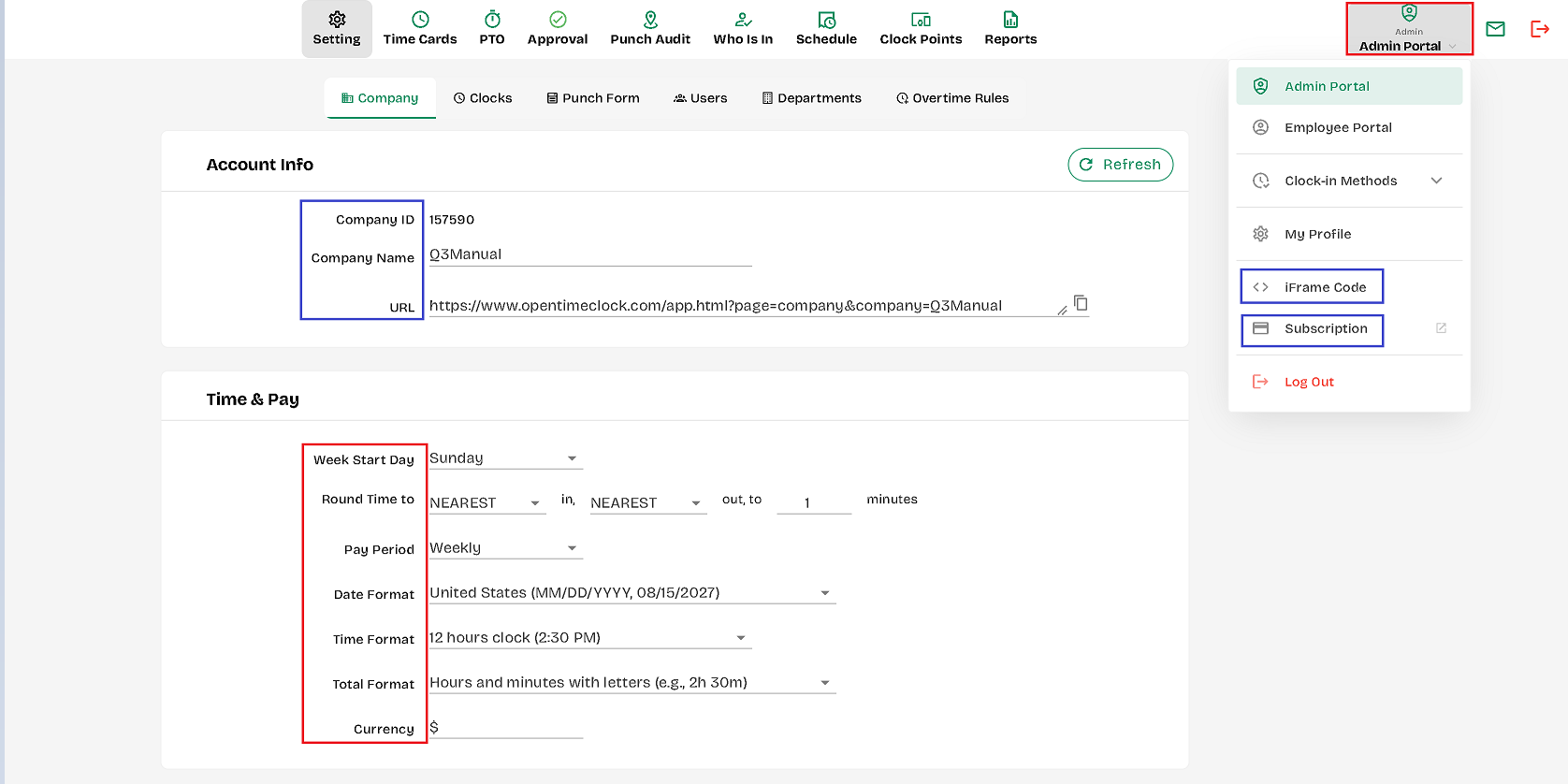
The “Company Setting” tab allows the user to edit select fields related to a company profile.
Fields that are not editable:
1. Company ID
2. Company URL
3. iFrame Code
4. Employee Screen Monitoring
5. Account Created Date
6. Editable fields:
COMMON SETTINGS
- Company Short Name – The unique company short name.
- Account Owner Email – This email address is associated with the primary administrator or owner of the account. This email address is used for important communications regarding the account, such as notifications, password resets, and account-related updates.
- Camera – This allows you to set the rules regarding the use of a Camera to log in/out.
- Week Start Day – Sets the day for the start of the work week.
- Round Time To – Rounds up to the closest X minute over if the employee is past the set time. Example. If the setting is for a 15-minute interval, the first 7 minutes over the set time are not counted (rounded down). Anything over 7 minutes up to 15 minutes is counted (rounded up).
- Auto Lunch Deduction – Automatically calculates lunch clock in/out without the employee doing it. If “Yes” is selected, the admin can enter the variable for the length of the break per duration of time worked. Example: 30 minutes every 6 hours.
- Date Format – Allows Admin to select the appropriate date format.
- Time Format – Allows Admin to select 12 or 24-hour format.
- Time Totals Format – Allows Admin to select format to display time worked.
- Default Time Zone – Sets the master time zone for the company.
- Pay period – Allows you to set the pay period to weekly, bi-weekly, semi-monthly, or monthly, depending on your company's rules.
---
CLOCK INTERFACES
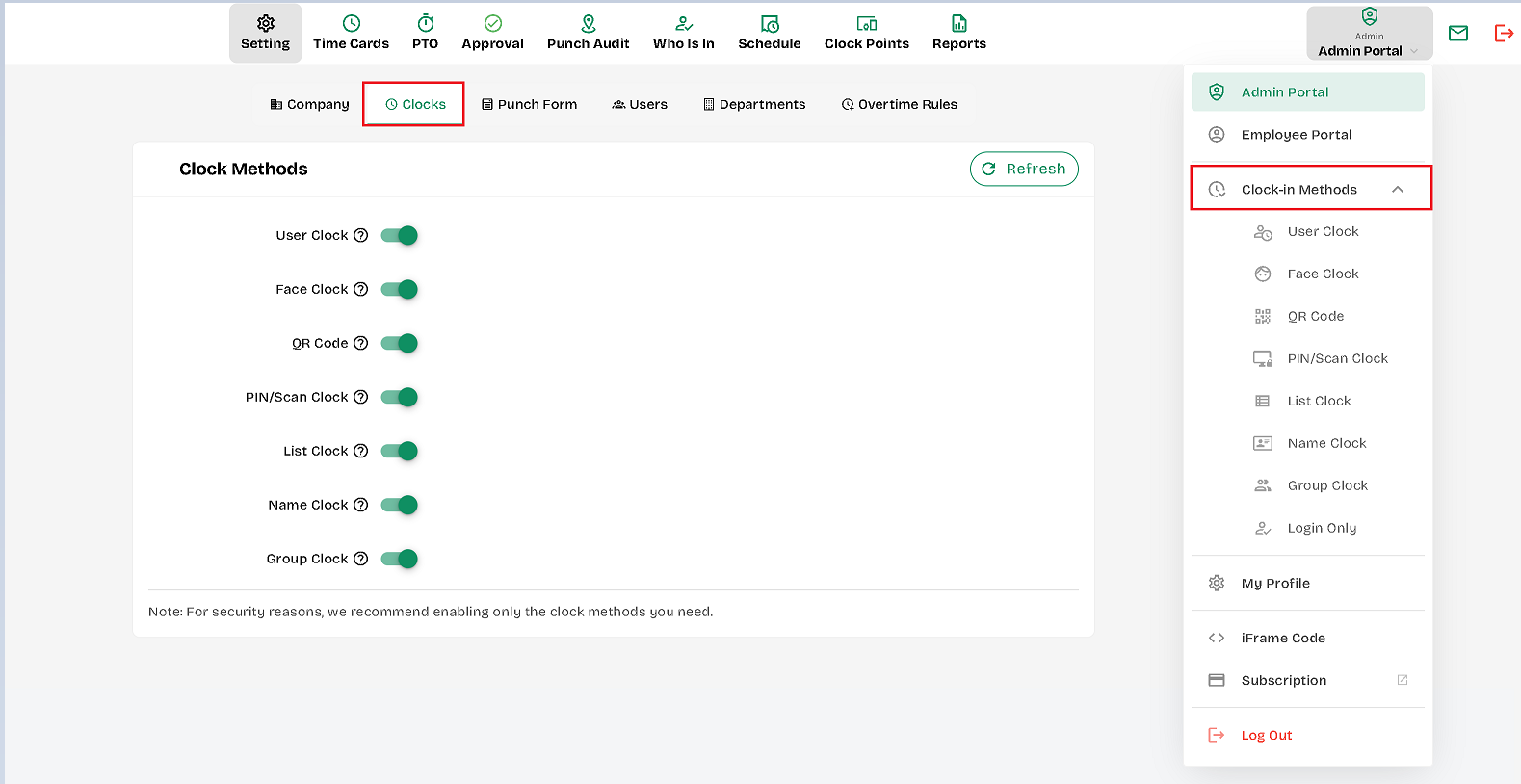
It offers different clock-in and clock-out options for your employees.
Desktop (Big Web) Clock UI
- User Clock – Standard clock-in/out for individual employees.
- Name Clock – Clock-in/out by selecting names from a list.
- Face Clock – Uses facial recognition to clock in/out.
- Group Clock – Clock-in/out multiple employees at once.
- QR Code (camera scan) – Clock-in/out using QR codes via webcam.
- PIN/Scan Clock– Enter a PIN to clock in/out at a shared kiosk.
---
FEATURES
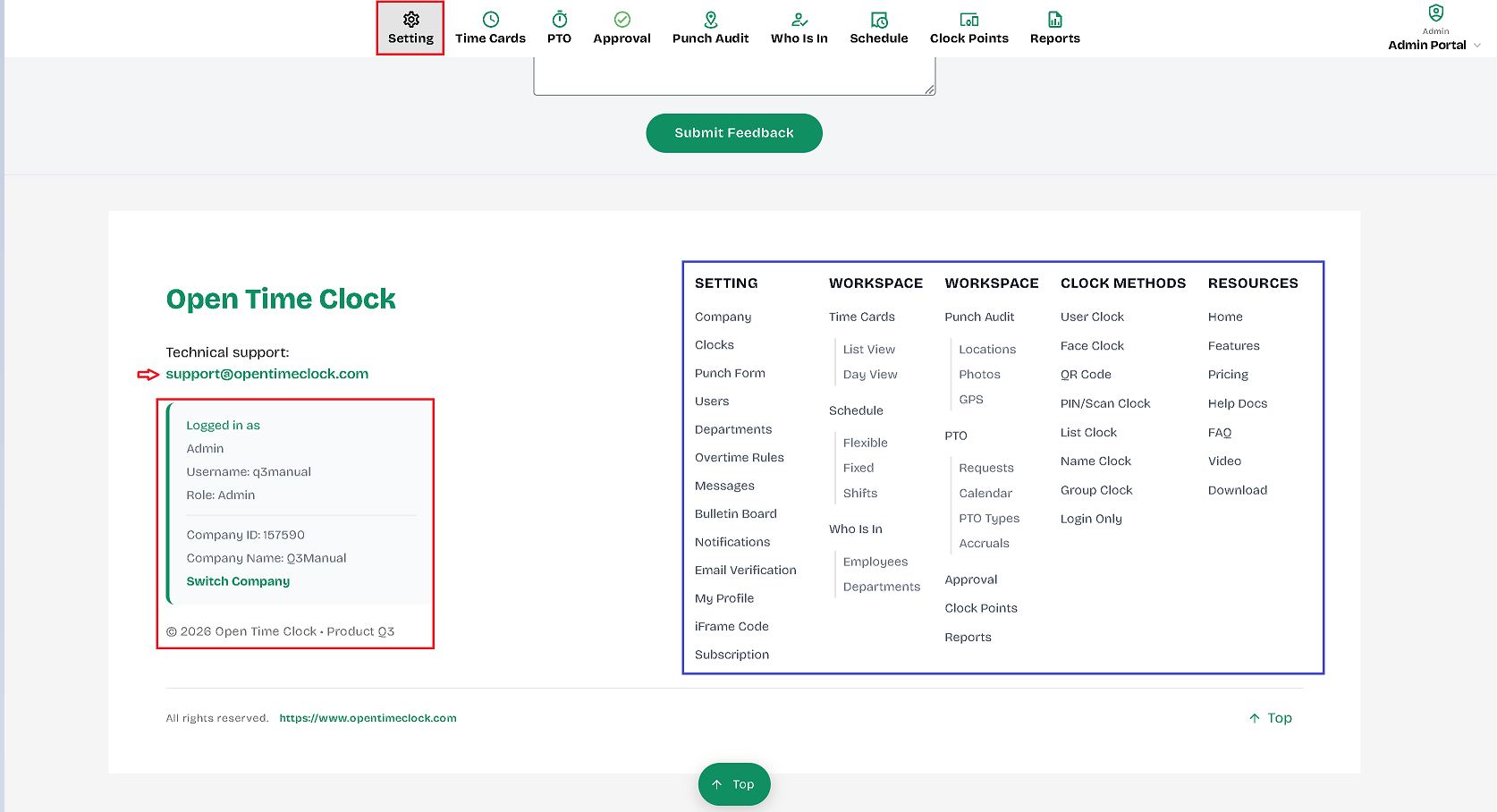
You can also find some additional features and login and company information about the account by scrolling down where you can find the following:
Created with the Personal Edition of HelpNDoc: Create HTML Help, DOC, PDF and print manuals from 1 single source