> For the complete documentation index, see [llms.txt](https://www.opentimeclock.com/docs/llms.txt). Markdown versions of documentation pages are available by appending `.md` to page URLs; this page is available as [Markdown](https://www.opentimeclock.com/docs/blog2/february-2026/opentimeclock-login-guide-manage-your-shifts-easily.md).
# OpenTimeClock Login Guide: Manage Your Shifts Easily
Learn how to use the OpenTimeClock login system for easy shift management. Complete guide for employees and managers. Start tracking time now!
## OpenTimeClock Login Guide: Manage Your Shifts Easily
It does not need to be difficult to manage the work hours. OpenTimeClock is a cloud-based service that allows employees and managers to enter, inspect, and adjust shifts correctly and openly. You can clock in on your desktop at the office or on your phone to check your schedule, either way, the OpenTimeClock login is your key to real-time workforce management. Being aware of how to get into your account right will never make you miss a punch, approval or a schedule update.
This guide is to give the process of logging in to [OpenTimeClock,](https://www.opentimeclock.com/) the most frequent login demands, and some tips to follow to prevent any problem with access. Once you are logged in, you will know how to sign in safely, change your credentials in case you have to, and use the most important features.
Spending less time on administrative friction and more on being productive, compliant and within control of your working hours by learning the process of logging in. We can start with a simple step-by-step explanation to employees, managers, and administrators throughout the world.
### What is OpenTimeClock
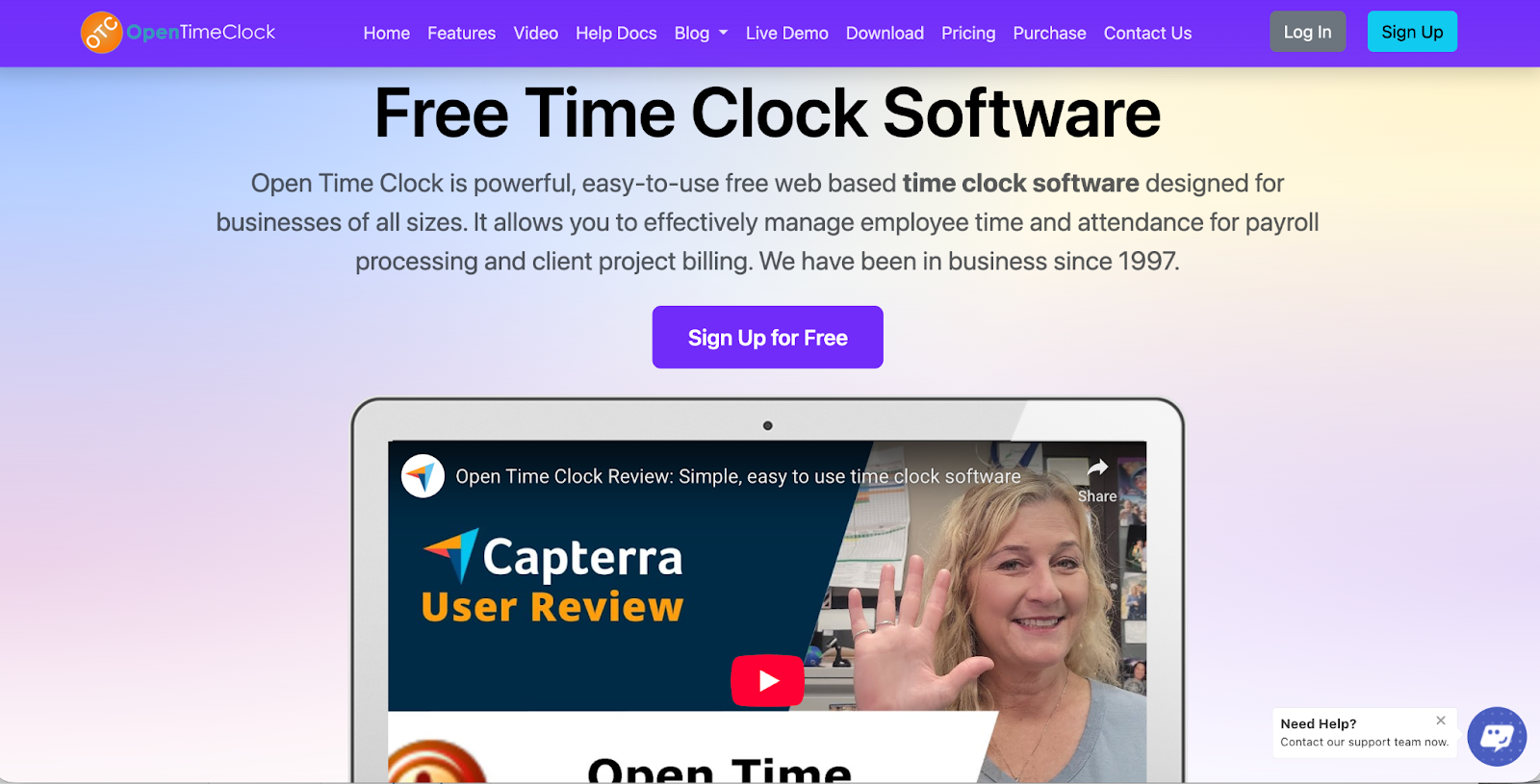
[OpenTimeClock](https://www.opentimeclock.com/) is a free online time clock system that helps businesses track employee work hours. It works on computers, phones, and tablets. The best part is that you do not need to pay anything to start using it. Any business owner can sign up and add unlimited employees without worrying about monthly fees.
This web-based time clock software helps you record when your employees start work and when they finish. The system keeps all this information safe in the cloud. This means you can check employee hours from anywhere, anytime. You just need an internet connection and a device to log in.
The OpenTimeClock platform is designed to be simple. Even if you are not good with technology, you can learn to use it quickly. Many small business owners choose this system because it saves time and makes payroll easier.
### How to Create Your OpenTimeClock Account
Before you can use the OpenTimeClock login, you need to create an account. The signup process is simple and takes only a few minutes.
Visit open time clock and click the Sign Up button. Fill in your company name, email address, and password. Select your timezone to ensure correct time recording.
After entering the information, read the terms and conditions, check the box, and click Create. Your account will be ready in seconds. Check your email for a confirmation link to verify your address.
Your OpenTimeClock account is now active and ready to use.
### Understanding the OpenTimeClock Login Process
Once you have created your account, you can start using the OpenTimeClock login feature. The login process is straightforward and works the same way on all devices.
To log in, go to the OpenTimeClock website. You will see a Login button on the top of the page. Click it and you will be taken to the login page. Here you need to enter your company name, username, and password.
After entering all details, click the Login button. If everything is correct, you will be taken to your dashboard where you can see all your employees and their work hours.
The login page has a Remember Password option. If you check this box, the system will save your login details. However, only use this on your personal device, not on shared computers.
If you forget your password, click the Forgot Password link. The system will send you an email with steps to reset your password.
### Different Ways Employees Can Clock In
OpenTimeClock offers many ways for employees to clock in and out. This flexibility makes it easy for different types of businesses to use the system.
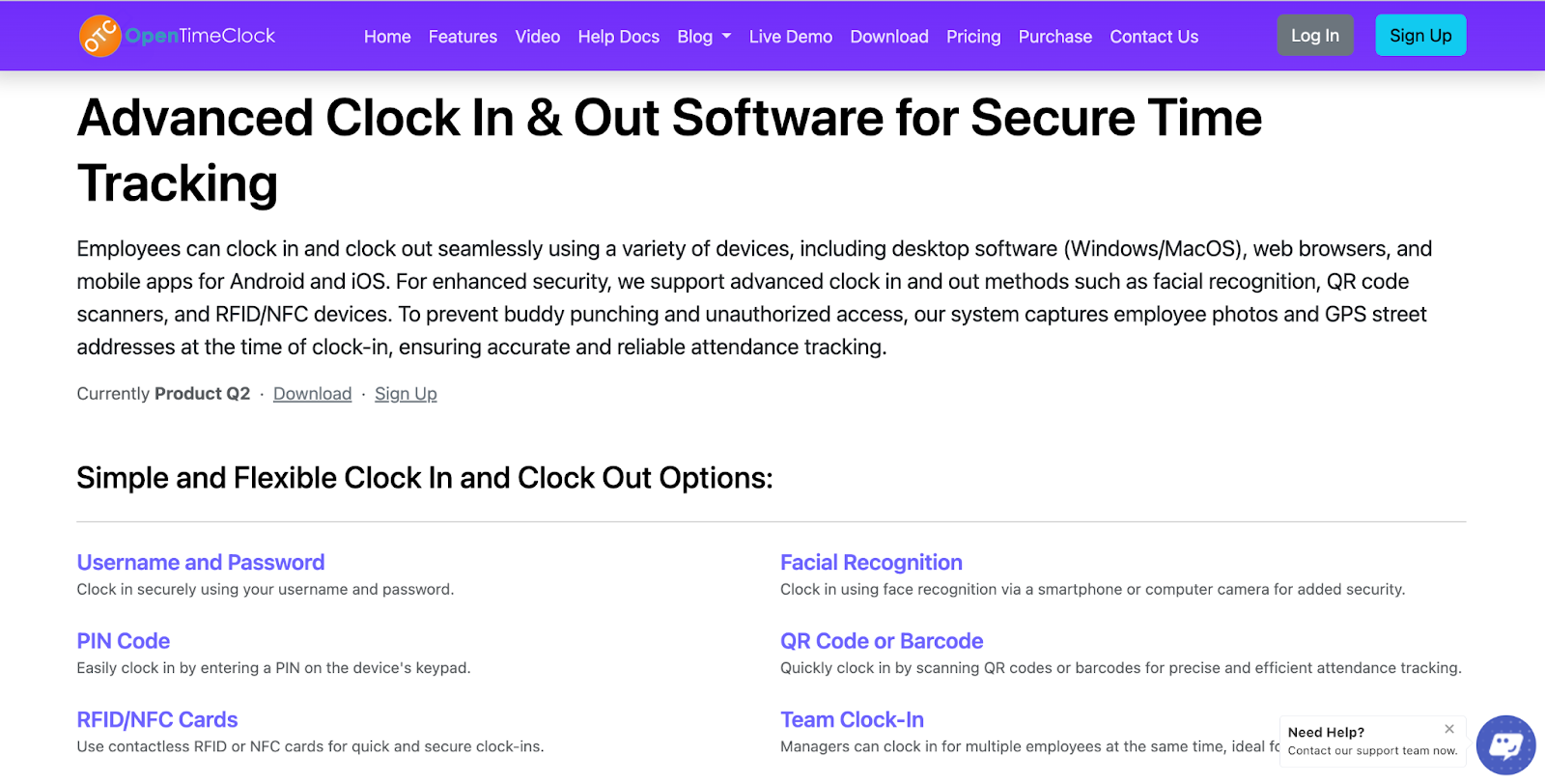
The most common method is username and password login. Each employee gets their own login credentials. When they arrive at work, they enter their company name, username, and password, then click Clock In. When finishing work, they click Clock Out.
The PIN system is good for workplaces where employees share one device. Employees enter a simple PIN number instead of a full username and password for faster clocking.
For extra security, OpenTimeClock offers facial recognition using the camera on phones or computers. When employees want to clock in, they look at the camera. The system takes their photo and matches it with their profile, preventing buddy punching.
Some companies use QR codes or RFID cards. Employees scan their personal code when they arrive for instant attendance recording.
The mobile app is available for Android and iPhone. Employees download it from app stores and can clock in right from their phones, perfect for remote workers.
### Managing Employee Shifts Through OpenTimeClock
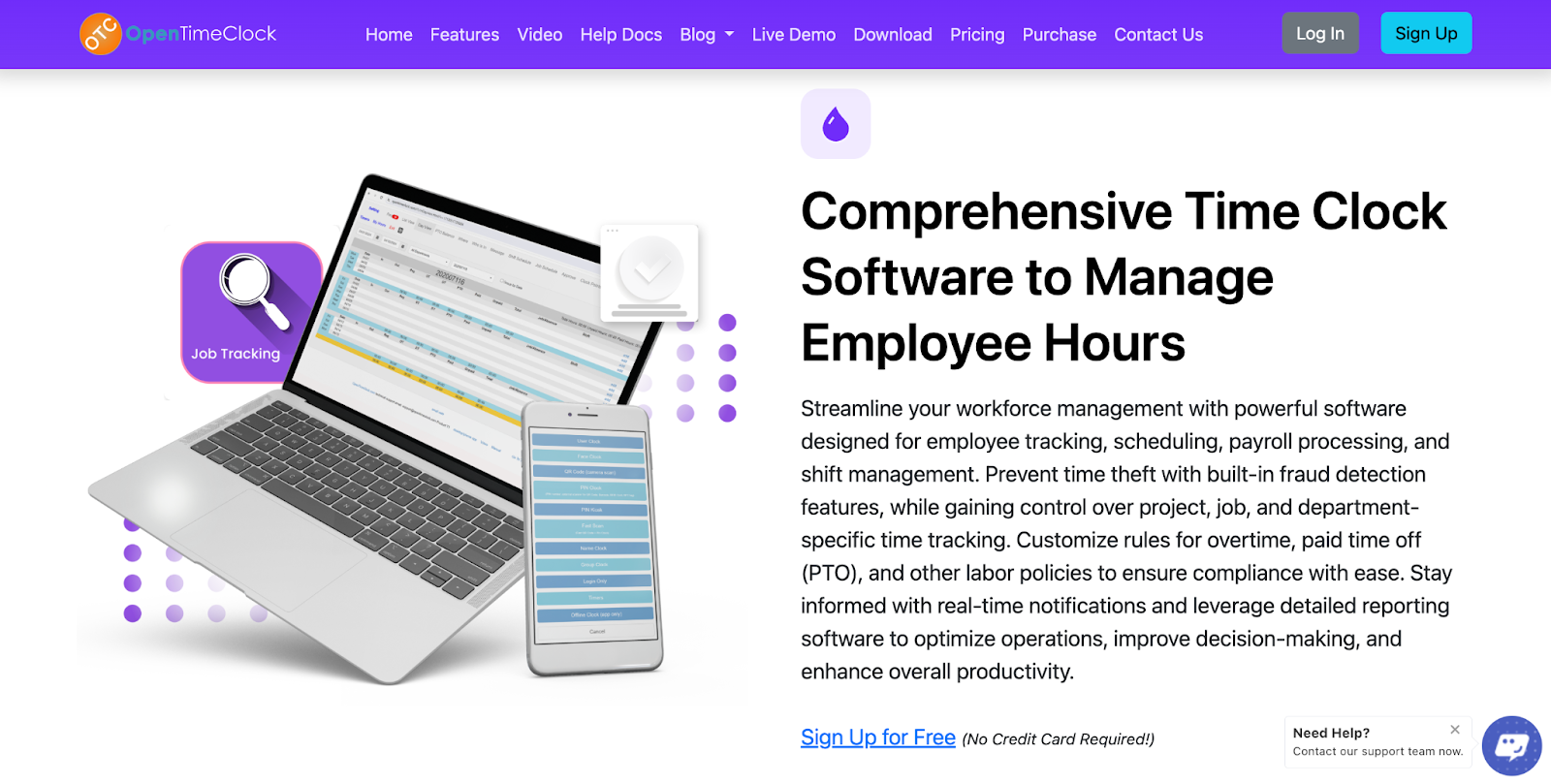
After employees log in and clock in, managers can track everything from their dashboard. The OpenTimeClock system gives managers powerful tools to manage shifts and work hours.
When you log into your manager account, you see a clear overview of all employees. You can see who is currently working and who is not. This real-time tracking helps you manage your team better. If someone is late or missing, you know immediately.
The system also allows managers to edit time cards if needed. Sometimes employees forget to clock in or out. Maybe there was a technical problem, or they were too busy. Managers can go into the system and fix these issues. You can add missing clock-ins, correct wrong times, or add notes explaining any changes.
Scheduling shifts becomes easier with OpenTimeClock. You can create shift schedules for your employees directly in the system. Employees can see their upcoming shifts when they log in. This reduces confusion and helps everyone know when they need to work.
The platform tracks different types of time off. If an employee needs a vacation or sick leave, they can request it through the system. Managers receive the request and can approve or deny it with one click. The system automatically calculates how much paid time off each employee has left.
For businesses that need to track work by project or department, OpenTimeClock has you covered. Employees can select which project or department they are working on when they clock in. This helps businesses understand where time is being spent. It makes billing clients easier and helps with cost tracking.
### Security Features That Protect Your Business
Security is very important when tracking employee time. OpenTimeClock includes several features that keep your business safe and prevent time theft.
GPS tracking records the location of employees when they clock in using their phone or device. Managers can see exactly where employees were when they started work.
You can set up geofencing, which creates a virtual boundary around your workplace. Employees can only clock in when they are inside this area.
WiFi-based attendance control allows clock-ins only when employees are connected to your company WiFi network. The system uses BSSID technology to verify the exact network.
The photo capture feature takes a picture every time someone clocks in. These photos stop buddy punching and make employees more accountable.
All data is stored securely in the cloud with encryption. Regular backups ensure you never lose important time records.
### Using OpenTimeClock Reports for Payroll
One of the biggest benefits of OpenTimeClock is how it simplifies payroll. The system creates detailed reports that show exactly how many hours each employee worked.
When it is time to process payroll, managers can generate reports with just a few clicks. The system offers over 80 different report types. You can create reports in PDF or Excel format. These reports show regular hours, overtime hours, and any paid time off taken.
The overtime calculation feature automatically tracks when employees work more than their regular hours. You can set the system to calculate overtime based on daily hours or weekly hours. This depends on your local labor laws and company policies. The system does the math for you, which reduces errors.
For businesses that bill clients based on time, OpenTimeClock creates project-based reports. These show how many hours were spent on each client or project. You can use these reports to create accurate invoices. This helps you get paid correctly for all the work your team does.
The [attendance reports ](https://www.opentimeclock.com/feature-attendance-only-on-company-wifi.html)show you patterns over time. You can see which employees are always on time and which ones are frequently late. This information helps you address attendance issues before they become big problems. You can also identify your most reliable workers.
All reports can be customized to show exactly what you need. You can filter by date range, department, employee, or project. You can also schedule reports to be generated automatically. The system can email you weekly or monthly reports so you always have the latest information.
### Tips for Getting the Most from OpenTimeClock
To make the most of your OpenTimeClock login and features, follow these helpful tips.
Set up employee profiles correctly from the start with accurate names, usernames, and departments. Train your employees on how to clock in and out properly.
Use notification features to stay informed about late arrivals and other issues. Review time cards regularly to catch problems early.
Take advantage of the mobile app to check employee hours from anywhere. Customize system settings to match your business needs.
Keep your login information secure by changing passwords regularly and giving each manager their own login.
### Conclusion
[OpenTimeClock ](https://www.opentimeclock.com/)is a powerful tool that makes managing employee time simple and free. From the easy login process to features like GPS tracking and facial recognition, the system helps businesses track work hours accurately.
Whether you are starting a business or improving your current system, OpenTimeClock offers a complete solution. The platform saves time on payroll, prevents time theft, and helps manage teams effectively.
Sign up for free and set up your employees, and start tracking time today. With multiple clock-in methods and detailed reports, you get everything needed to manage shifts easily.
### Frequently Asked Questions
Is OpenTimeClock really free to use?
Yes, OpenTimeClock offers a free plan that includes unlimited employees and managers. You can track time, manage attendance, and generate basic reports without paying anything. This makes it perfect for small businesses and startups. There are some premium features available for purchase, but the free version includes all the essential tools most businesses need for time tracking and payroll processing.
What should I do if I forget my OpenTimeClock login password?
If you forget your password, go to the OpenTimeClock login page and click on the "Forgot Password" link. Enter your email address and company name. The system will send you an email with instructions to reset your password. Check your email inbox and follow the steps.
Can employees use OpenTimeClock on their mobile phones?
Yes, employees can use OpenTimeClock on their smartphones. The system has apps for both Android and iPhone devices. Employees can download the app from Google Play Store or Apple App Store. Once installed, they log in using their company name, username, and password.
How does OpenTimeClock prevent employees from clocking in from home?
OpenTimeClock has several security features to ensure employees clock in from the correct location. You can enable GPS tracking, which records where the employee is when they clock in. Geofencing lets you create a virtual boundary around your workplace so employees can only clock in when inside that area. WiFi-based attendance restricts clock-ins to your company WiFi network. You can also use the photo capture feature to see a picture of the employee at clock-in time.
How do I add new employees to my OpenTimeClock account?
After you log into your manager account, go to the employee management section in your dashboard. Click on "Add New Employee" or a similar button. Fill in the employee details including their name, username, and password. You can also assign them to specific departments or projects. Once saved, the new employee can start using their login credentials to clock in and out. You can add as many employees as you need, even on the free plan.
---
# Agent Instructions
This documentation is published with GitBook. GitBook is the documentation platform designed so that both humans and AI agents can read, navigate, and reason over technical content effectively. Learn more at gitbook.com.
## Querying This Documentation
If you need additional information that is not directly available in this page, you can query the documentation by asking a question.
Perform an HTTP GET request on the following URL with the `ask` and `goal` query parameters:
```
GET https://www.opentimeclock.com/docs/blog2/february-2026/opentimeclock-login-guide-manage-your-shifts-easily.md?ask=&goal=
```
`ask` is the immediate question: it should be specific, self-contained, and written in natural language.
`goal` is what the user is ultimately trying to achieve, the reason they need the answer. Sharing it helps GitBook give you a better, more relevant answer. A goal is most helpful when it describes the outcome the user wants rather than restating the question. For example, with `ask=how do I create an API token`, a goal like `automate deployments from our CI pipeline` lets GitBook tailor the answer to that use case.
The response will contain a direct answer to the question and relevant excerpts and sources from the documentation.
Use this mechanism when the answer is not explicitly present in the current page, you need clarification or additional context, or you want to retrieve related documentation sections.