> For the complete documentation index, see [llms.txt](https://www.opentimeclock.com/docs/llms.txt). Markdown versions of documentation pages are available by appending `.md` to page URLs; this page is available as [Markdown](https://www.opentimeclock.com/docs/blog2/february-2026/desktop-time-logger-how-it-works-and-why-modern-teams-need-one.md).
# Desktop Time Logger: How It Works & Why Modern Teams Need One
Learn what a Desktop Time Logger is, how it works, why teams need it, and how Open Time Clock provides free, powerful desktop time tracking for all businesses.
## Desktop Time Logger: How It Works and Why Modern Teams Need One
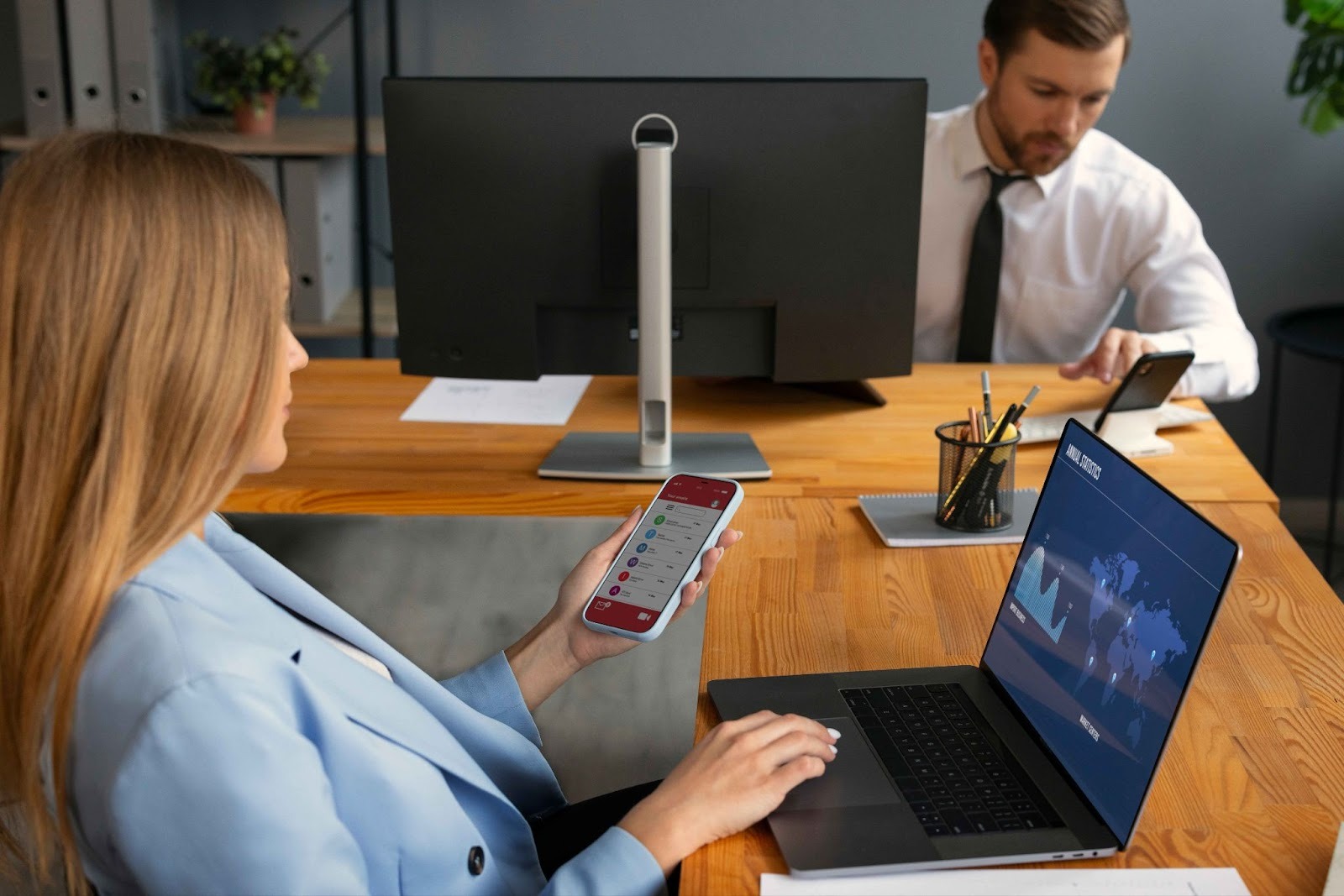
The contemporary work place has transformed significantly. A lot of employees are working in their home offices or coffee shops or with clients. Even in normal offices, individuals do not always be in a single location with a physical time clock. This complicates monitoring the working hours of the people and particularly when they are using computers in other places.
A Desktop Time Logger is the answer. This is a software that works on a computer of a worker, either Windows PC or Mac. The employee opens the app and logs in and then clicks a button to clock in. The software captures the time and stores it in the cloud in a safe place and displays it to managers immediately. No additional hardware is required to install and no special equipment has to be purchased. Nothing but mere software that makes any computer a trustworthy time clock.
This article will describe what a Desktop Time Logger is, its functionality, why a team requires one, what makes it good and how [Open Time Clock](https://www.opentimeclock.com/) provides you with one of the best and easiest desktop time logging systems on the market today, and it is also completely free and has unlimited employee capacity.
### What Is a Desktop Time Logger?
A Desktop Time Logger is a software application installed on a computer that allows employees to record their work hours directly from their desktop. Instead of walking to a wall-mounted time clock or using a web browser, employees open the dedicated desktop app and clock in with a single click. The app runs quietly in the background while they work and lets them clock out just as easily when their shift ends.
The software does more than just record times. It can capture screenshots or activity logs to verify that work is actually being done. It can track which project or department the employee is working on. It can record GPS location if the computer has GPS capability or note the IP address to verify the employee is working from an approved location. And it can work offline when there is no internet connection, storing data locally and syncing it to the cloud automatically when the connection returns.
A desktop time logger is especially useful for office workers, remote employees, and anyone who spends their day at a computer. It removes the friction of having to remember to open a website or find a shared device to clock in. The app is always right there on their desktop, making time tracking fast and effortless.
### How a Desktop Time Logger Works Step by Step
Understanding the process from start to finish helps you see how simple and effective desktop time logging is. Here is how it works:
#### Step One — Installation
The employee or IT department downloads the desktop application from the company's chosen time tracking provider. For Open Time Clock, the Windows and Mac apps are available for free download with no installation fees. The app installs in minutes and requires no special permissions or complicated setup.
#### Step Two — Login and Authentication
The employee opens the desktop app and logs in with their company credentials — typically a username and password. The system verifies their identity and loads their profile, including their role, department, and any assigned projects or shifts. This authentication step ensures only authorized employees can clock in and that time is recorded accurately.
#### Step Three — Clock In
When the employee is ready to start work, they click the clock-in button in the desktop app. The system records the exact time down to the second. Depending on settings, it may also capture a photo using the computer's webcam, record the IP address, or note other verification data. All of this information is sent instantly to the cloud where managers can see it.
#### Step Four — Work Throughout the Day
The employee works as normal. The desktop app runs quietly in the background without interfering with their other programs. If the employee needs to switch between different projects or departments during the day, they can select the new project from a dropdown in the app without clocking out. The system tracks time separately for each project or department.
#### Step Five — Clock Out
When the shift ends or when it is time for a break, the employee clicks the clock-out button. The system records the exact time and calculates total hours worked. If the employee forgets to clock out, some systems can automatically clock them out after a certain period of inactivity or at the end of their scheduled shift.
#### Step Six — Data Syncs to the Cloud
All clock-in and clock-out data is stored locally on the computer and also synced to the cloud in real time. If the internet connection is lost during the day, the app continues working offline and syncs everything once the connection returns. This ensures no time is ever lost, even if there are network problems. Open Time Clock's desktop app includes full offline functionality.
### Why Modern Teams Need a Desktop Time Logger
Many businesses still rely on web-based time clocks where employees log in through a browser. While this works, it is not ideal for several reasons. Here is why a dedicated Desktop Time Logger is better:
#### Always Available Without Needing to Open a Browser
With a web-based system, employees have to remember the website URL, open a browser, navigate to the site, and log in. This takes time and creates friction. With a desktop app, time tracking is always just one click away. The app launches when the computer starts and sits quietly in the system tray or dock until needed. This convenience means employees are more likely to clock in and out accurately.
#### Works Offline When Internet Is Unavailable
Internet connections fail. Networks go down. VPNs disconnect. When this happens with a web-based system, employees cannot clock in or out until the connection is restored. A desktop time logger works even when offline, storing data locally and syncing it later. This is critical for remote workers with unreliable internet or for anyone working in areas with poor connectivity.
#### Faster and More Reliable Than Web Apps
Desktop applications run natively on the operating system and are generally faster and more stable than web apps running in a browser. There is no waiting for pages to load. There are no browser compatibility issues. The experience is consistent every time.
#### Can Integrate with Desktop Features
A desktop app can take advantage of computer features that web apps cannot easily access. It can use the webcam for photo verification. It can access system-level information like IP addresses or hardware IDs. It can run background processes without the user needing to keep a browser tab open all day.
#### Provides Better Security
Desktop applications can be configured to require device-specific authentication. This means employees can only clock in from approved computers, preventing them from logging in from personal devices at home or from unauthorized locations. This level of control is harder to achieve with web-based systems.
### Key Features of a Good Desktop Time Logger
Not all desktop time loggers are the same. Here are the most important features to look for:
#### Cross-Platform Support
The software should work on both Windows and Mac so every employee can use it regardless of their computer. [Open Time Clock](https://www.opentimeclock.com/) provides dedicated apps for both platforms with identical functionality.
#### Simple One-Click Clock In and Clock Out
The interface should be clean and simple. Employees should not have to navigate through menus or fill out forms. One click to clock in. One click to clock out. That is all it should take.
#### Project and Department Tracking
Employees should be able to select which project or department they are working on without clocking out and clocking back in. The system should track hours separately for each assignment, making job costing and departmental reporting accurate. Open Time Clock includes full job tracking features.
#### Offline Mode with Auto-Sync
The app must work without the internet and automatically sync data when the connection returns. This ensures no attendance records are ever lost and employees can always clock in no matter where they are working.
#### Photo Verification
The app should capture a photo using the computer's webcam at clock-in to prevent buddy punching and verify identity. This photo should be stored with the attendance record and viewable by managers. Open Time Clock captures photos automatically at every clock-in.
#### Lightweight and Non-Intrusive
The app should use minimal system resources and run quietly in the background without slowing down the computer or interfering with other programs. Employees should barely notice it is running except when they need to clock in or out.
#### Integration with Cloud Systems
All data should sync seamlessly to a cloud-based system where managers can view reports, approve time cards, and process payroll. The desktop app should just be one access point in a larger ecosystem that also includes mobile apps and web access.
### How Open Time Clock Delivers the Best Desktop Time Logging Experience
[Open Time Clock ](https://www.opentimeclock.com/)provides free desktop applications for Windows and Mac that deliver complete time tracking functionality without any cost or limitations. The apps are lightweight, easy to install, and require no technical expertise to use.
Employees clock in and out with one click. The app captures webcam photos for verification, tracks IP addresses for location confirmation, and works completely offline with automatic cloud sync. Employees can switch between different projects or departments during their shift without clocking out, and the system tracks time separately for each assignment.
Managers view all attendance data from a cloud-based dashboard accessible from any device. They can see who is currently clocked in, review timecards, approve hours, and generate detailed reports in PDF, Excel, or CSV format. The system supports over 80 types of reports covering every aspect of time tracking, payroll, and project billing.
The desktop app integrates seamlessly with Open Time Clock's mobile apps for iOS and Android, creating a complete ecosystem where employees can clock in from whatever device is most convenient — their phone, their computer, or a shared tablet at the office entrance.
### Conclusion
The modern workplace demands modern tools. Paper timesheets and punch cards do not work when employees are scattered across homes, offices, and client sites. A Desktop Time Logger solves this problem by turning every computer into a reliable time clock. It gives employees an easy way to record hours without friction. It gives managers real-time visibility into attendance. And it creates accurate records for payroll, compliance, and billing.
The right desktop time logger does not have to be expensive or complicated. [Open Time Clock ](https://www.opentimeclock.com/)provides powerful, free Desktop Time Logger software for Windows and Mac that works offline, captures verification photos, tracks projects, and syncs seamlessly to the cloud. Visit the open time clock today and download the desktop app for free, and experience how much easier workforce management becomes when every employee has time tracking built right into their computer.
### FAQ’s
#### What is a Desktop Time Logger and how is it different from a web-based time clock?
A Desktop Time Logger is a software application installed directly on a computer that allows employees to clock in and out without opening a web browser. Unlike web-based systems, desktop apps work offline, are always accessible with one click, run faster, and can integrate with computer features like webcams and system settings for better verification and security.
#### Does the desktop app work on both Windows and Mac?
Yes. Open Time Clock provides dedicated desktop applications for both Windows and Mac with identical functionality. Both apps are free to download and support all the same features including offline mode, photo capture, project tracking, and cloud sync.
#### What happens if the internet goes down while using a Desktop Time Logger?
The app continues working normally in offline mode. All clock-ins and clock-outs are stored locally on the computer. When the internet connection returns, the app automatically syncs all the data to the cloud. No attendance records are ever lost, even during extended network outages.
#### Can employees switch between different projects without clocking out?
Yes. [Open Time Clock's](https://www.opentimeclock.com/) desktop app allows employees to select which project or department they are working on at any time during their shift. The system tracks hours separately for each assignment without requiring employees to clock out and clock back in.
#### Is Open Time Clock's Desktop Time Logger free to use?
Yes. Open Time Clock offers completely free desktop applications for Windows and Mac with no limitations on the number of employees or features. You get full time tracking, offline mode, photo verification, project tracking, and cloud sync at no cost. There are no hidden fees and no credit card required.
---
# Agent Instructions
This documentation is published with GitBook. GitBook is the documentation platform designed so that both humans and AI agents can read, navigate, and reason over technical content effectively. Learn more at gitbook.com.
## Querying This Documentation
If you need additional information that is not directly available in this page, you can query the documentation dynamically by asking a question.
Perform an HTTP GET request on the current page URL with the `ask` query parameter, and the optional `goal` query parameter:
```
GET https://www.opentimeclock.com/docs/blog2/february-2026/desktop-time-logger-how-it-works-and-why-modern-teams-need-one.md?ask=&goal=
```
`ask` is the immediate question: it should be specific, self-contained, and written in natural language.
`goal` is optional and describes the broader end goal you are ultimately trying to accomplish on behalf of the user. GitBook uses it to tailor the answer towards what is most useful for that goal.
The response will contain a direct answer to the question and relevant excerpts and sources from the documentation.
Use this mechanism when the answer is not explicitly present in the current page, you need clarification or additional context, or you want to retrieve related documentation sections.